

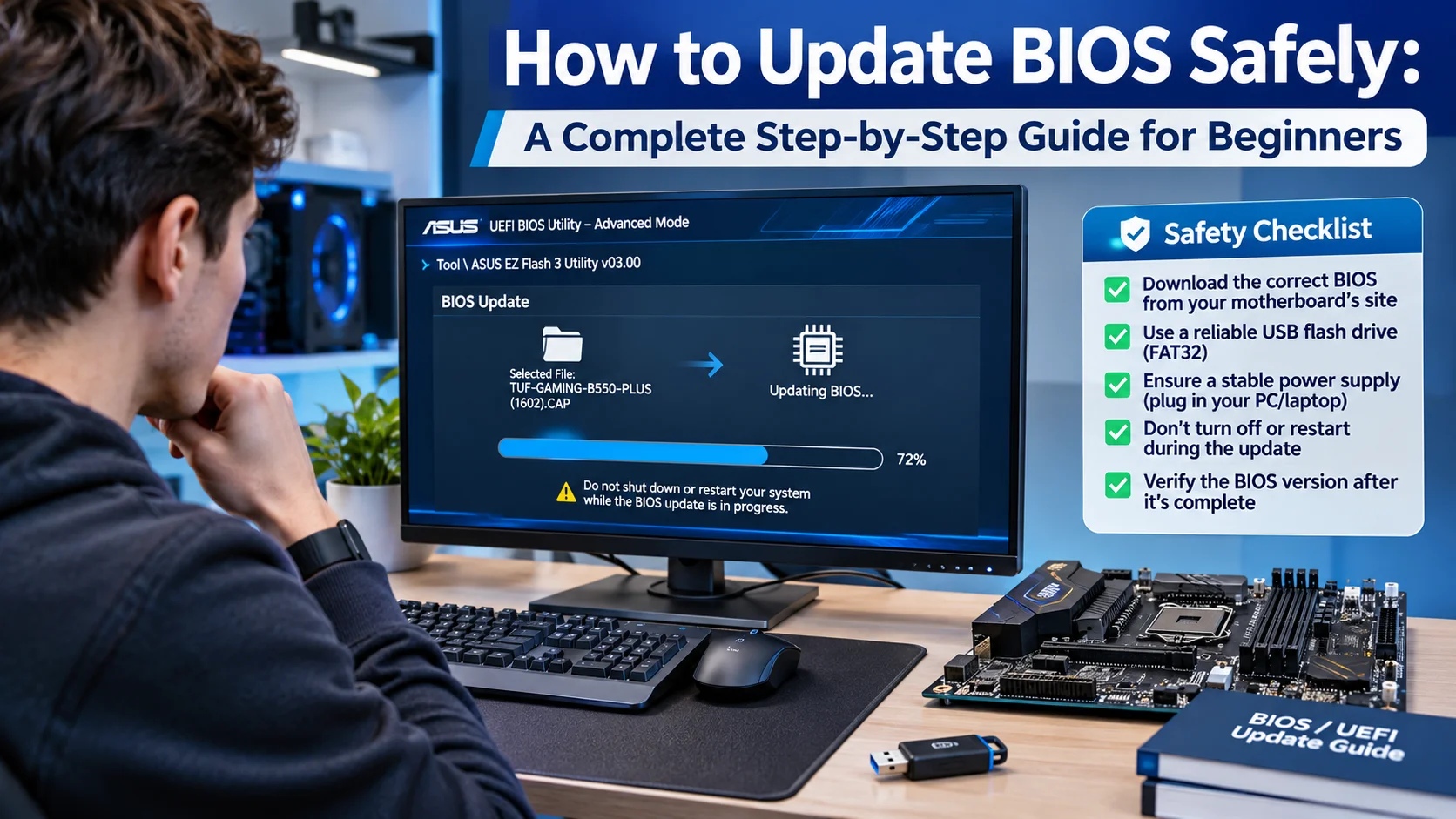
Your computer’s BIOS plays a vital role in how your system starts, communicates with hardware, and manages core functions. While many people never think about it, updating the BIOS can solve compatibility issues, improve hardware support, and even fix certain system stability problems.
However, a BIOS update is not something you should rush into. One mistake during the process can cause your computer to stop working properly. The good news is that if you follow the right steps, the process is usually safe and straightforward.
In this guide, you’ll learn how to update BIOS safely, when updates are necessary, the risks involved, and the exact steps to complete the process without damaging your system.
What Is BIOS and Why Does It Matter?
BIOS stands for Basic Input/Output System. It is firmware stored on a chip located on your computer’s motherboard.
When you turn on your PC, the BIOS starts first. It checks that all hardware components are working correctly and then loads your operating system.
The BIOS handles key tasks such as:
- Detecting hardware devices
- Managing startup settings
- Controlling system communication
- Supporting CPU and memory functions
- Providing hardware configuration options
Modern computers often use UEFI firmware instead of traditional BIOS. However, many users still use the term BIOS for both.
Reasons You Might Need a BIOS Update
Many people wonder if they should update their BIOS regularly like other software. In most cases, the answer is no.
You should update your BIOS only when there is a good reason.
Common reasons include:
- Installing a newer processor
- Fixing hardware compatibility issues
- Solving boot problems
- Improving memory support
- Addressing stability concerns
- Fixing known bugs
- Enhancing security features
If your computer works perfectly and the manufacturer does not recommend an update, you may not need one.
When You Should Avoid a BIOS Update
A BIOS update can be helpful, but it isn’t always necessary.
Avoid updating the BIOS if:
- Your computer runs normally
- The update does not address your issue
- Your power supply is unstable
- You cannot identify your motherboard model
- You downloaded the BIOS file from an unofficial source
Updating only because a newer version exists can create unnecessary risks.
Understanding the Risks Before Updating
Before learning how to update BIOS safely, you need to understand the potential risks.
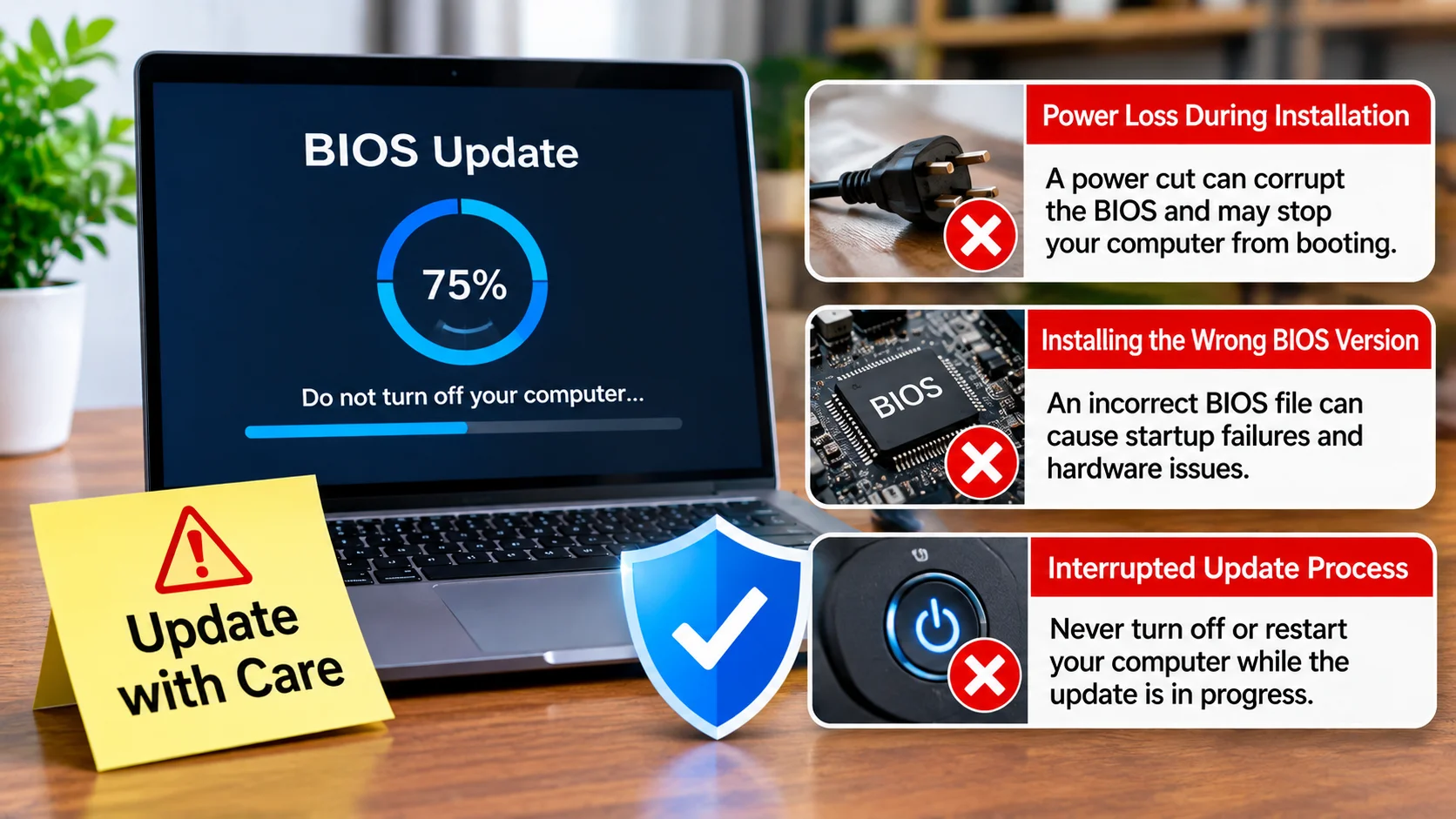
Power Loss During Installation
If power fails while the BIOS is updating, the firmware can become corrupted.
In severe cases, your motherboard may fail to boot.
Installing the Wrong BIOS Version
Every motherboard requires a specific BIOS file.
Installing an incorrect version can cause startup failures and hardware issues.
Interrupted Update Process
Never turn off your computer during a BIOS update.
Restarting or shutting down the system before completion can damage the firmware.
Benefits of a Successful BIOS Update
When completed correctly, a BIOS update can provide several advantages.
Some common benefits include:
| Benefit | Description |
|---|---|
| Improved Hardware Support | Allows compatibility with newer CPUs, RAM, and devices |
| Better Stability | Resolves crashes and system errors |
| Security Enhancements | Fixes firmware-level vulnerabilities |
| Performance Improvements | Optimizes hardware communication |
| Bug Fixes | Corrects known motherboard issues |
| Enhanced Features | Adds support for new technologies |
While performance gains are not always dramatic, compatibility and stability improvements can make a big difference.
Essential Steps Before You Update Your BIOS
Preparation is the most important part of the entire process.
Confirm Your Motherboard Model
First, identify your motherboard model.
You can find this information by:
- Checking the motherboard itself
- Reading your PC documentation
- Using system information tools
- Visiting the manufacturer’s support page
Accurate identification prevents downloading the wrong BIOS file.
Check Your Current BIOS Version
Before updating, find out which BIOS version you currently use.
In Windows:
- Press Windows + R.
- Type msinfo32.
- Press Enter.
- Look for “BIOS Version/Date.”
Compare the installed version with the latest release available from your manufacturer.
Read the Release Notes
Manufacturers typically provide release notes with every BIOS update.
These notes explain:
- Fixed bugs
- Added features
- Security improvements
- Compatibility changes
Reading them helps determine whether the update is necessary.
Back Up Important Data
A BIOS update usually doesn’t affect personal files.
Still, backing up important data is a smart precaution.
Use:
- External hard drives
- Cloud storage
- Backup software
Unexpected problems can occur during any system maintenance task.
How to Update BIOS Safely: Step-by-Step Process
Now let’s walk through how to update BIOS safely from start to finish.
Step 1: Visit the Official Manufacturer Website
Go directly to your motherboard or computer manufacturer’s support page.
Examples include:
- ASUS
- MSI
- Gigabyte
- ASRock
- Dell
- HP
- Lenovo
Search using your exact model number.
Never download BIOS files from third-party websites.
Step 2: Download the Correct BIOS File
Locate the latest BIOS version that matches your motherboard model.
Download:
- BIOS update file
- Update utility if required
- Manufacturer instructions
Many manufacturers also provide detailed update guides.
Step 3: Verify File Information
Double-check the following:
- Motherboard model number
- BIOS version
- Release date
- Supported hardware
Even a small mistake can cause serious issues.
Step 4: Prepare a USB Flash Drive
Most BIOS updates require a USB drive.
Format the USB drive using FAT32 and copy the BIOS file onto it.
Keep the USB drive free from unnecessary files.
Step 5: Ensure Stable Power
This step is critical.
If possible:
- Use an uninterruptible power supply (UPS)
- Ensure your laptop battery is fully charged
- Keep the charger connected
Power interruption remains one of the biggest BIOS update risks.
Step 6: Enter the BIOS Menu
Restart your computer.
During startup, press the required key such as:
- Delete
- F2
- F10
- Esc
The correct key depends on your motherboard manufacturer.
Step 7: Launch the BIOS Update Utility
Most modern motherboards include built-in update tools.
Examples include:
- ASUS EZ Flash
- MSI M-Flash
- Gigabyte Q-Flash
- ASRock Instant Flash
Select the BIOS file from your USB drive.
Step 8: Start the Update Process
Confirm the update and allow the process to run.
At this stage:
- Do not restart
- Do not disconnect power
- Do not remove the USB drive
- Do not press random keys
The update usually finishes within several minutes.
Step 9: Allow Automatic Restart
After completion, the system typically restarts on its own.
During the first restart, boot time may be slightly longer than normal.
This behavior is common.
Step 10: Verify the New BIOS Version
After Windows loads:
- Open System Information.
- Check BIOS Version.
- Confirm the update completed successfully.
You have now completed the process of how to update BIOS safely.
Common Mistakes to Avoid
Many BIOS update failures happen because users overlook simple details.
Avoid these common mistakes:
Downloading Files From Unofficial Sources
Always use the official manufacturer’s website.
Third-party files may be outdated, modified, or incorrect.
Ignoring Compatibility Checks
Never assume BIOS files are interchangeable.
Even similar motherboard models may require different firmware versions.
Updating During Storms or Power Instability
Electrical interruptions can occur unexpectedly.
Choose a time when power conditions are stable.
Skipping Manufacturer Instructions
Different manufacturers use different update procedures.
Always follow the provided instructions carefully.
Signs That a BIOS Update Was Successful
After updating, look for these indicators:
- Correct BIOS version appears
- Computer boots normally
- Hardware functions properly
- No error messages appear
- System remains stable
A successful update often requires no additional changes.
What to Do If Something Goes Wrong
Even when following best practices, issues can occur.
BIOS Recovery Features
Some motherboards include recovery tools.
Popular examples include:
- BIOS Flashback
- Dual BIOS
- Recovery Mode
These features can restore corrupted firmware without replacing hardware.
Reset BIOS Settings
If your system behaves strangely:
- Enter BIOS setup.
- Load default settings.
- Save and restart.
This often resolves configuration conflicts.
Contact Manufacturer Support
If recovery attempts fail, contact your motherboard manufacturer.
They can provide model-specific troubleshooting steps.
BIOS Update Tips for Gamers and PC Builders
Gamers and custom PC builders often update BIOS firmware to support newer processors or memory modules.
Before upgrading hardware:
- Confirm BIOS compatibility
- Update before installing a new CPU
- Check memory support lists
- Read manufacturer guidance
Many modern processor upgrades require a BIOS update before installation.
Planning ahead prevents frustrating startup failures.
Frequently Asked Questions About BIOS Updates
Many users have similar concerns before updating firmware.
Let’s answer some of the most common ones.
Can a BIOS Update Improve Gaming Performance?
A BIOS update rarely provides major FPS gains. It may improve hardware compatibility, stability, and support for newer components.
How Long Does a BIOS Update Take?
Most BIOS updates finish within a few minutes. The exact time depends on your motherboard and update method.
Is It Safe to Update BIOS by Yourself?
Yes. If you carefully follow manufacturer instructions and use the correct BIOS file, the process is generally safe.
What Happens If Power Fails During an Update?
Power loss can corrupt the BIOS firmware. Recovery options depend on your motherboard’s built-in protection features.
Should I Update BIOS Regularly?
No. Update only when a new version fixes a problem, adds hardware support, or addresses security concerns.
Conclusion
Learning how to update BIOS safely can help you maintain a stable and compatible computer system. While the process may sound intimidating at first, careful preparation makes it much easier and safer.
Always verify your motherboard model, download files from the official manufacturer, ensure stable power, and follow the provided instructions closely. Most BIOS update problems happen when users skip these simple precautions.
When done correctly, a BIOS update can improve compatibility, fix bugs, support new hardware, and enhance system reliability. Take your time, follow each step carefully, and you’ll complete the update with confidence and peace of mind.
[…] to Fix a Bricked Device After a Failed Update: A Friendly Step-by-Step Guide How to Update BIOS Safely: A Complete Step-by-Step Guide for Beginners How to Enable Two-Factor Authentication and Keep Your Accounts Safe How to Connect Printer to […]