

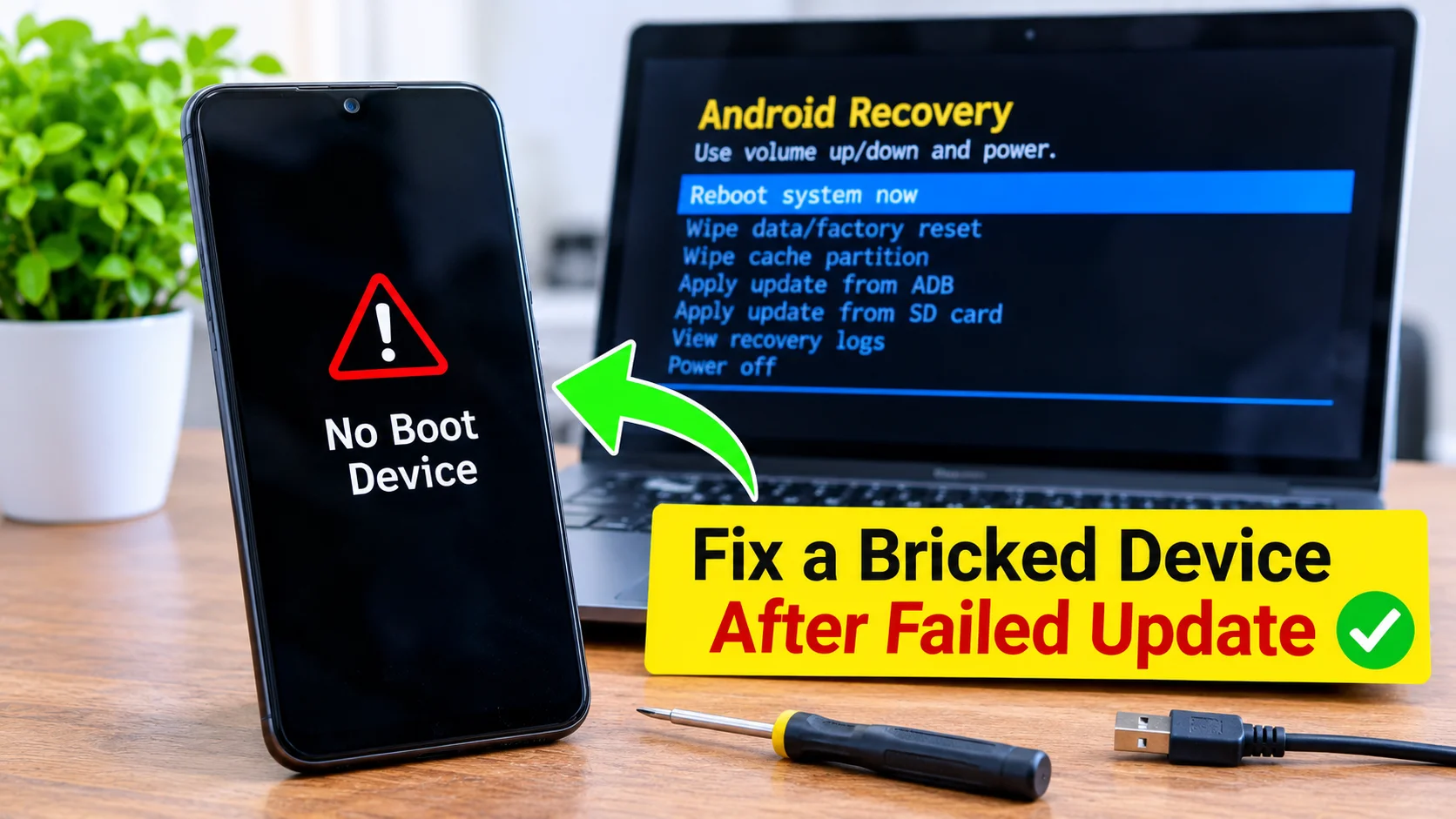
A software update should improve your device, not turn it into an expensive paperweight. Unfortunately, failed updates sometimes cause phones, tablets, laptops, gaming consoles, and other electronics to become “bricked.” If you’re searching for how to fix a bricked device after failed update, don’t panic. In many cases, you can recover your device without replacing it. The key is understanding what caused the problem and following the right recovery steps.
This guide explains what a bricked device is, why software updates fail, and the best ways to bring your device back to life.
What Does “Bricked” Really Mean?
A bricked device is one that will not start or work as it should. People use the word because a dead phone feels as useful as a brick. The good news is that most bricked devices are not truly dead.
Experts split bricking into two main types. Each type needs a different fix, so it helps to know which one you face.
Soft Brick: The Fixable Kind
A soft brick means the device has power but cannot finish starting up. You may see a boot loop, where the logo appears again and again. You may also see a frozen screen or an error message.
Soft bricks are very common after a failed update. The software got damaged, but the hardware still works. You can usually fix it at home.
Hard Brick: The Tougher Kind
A hard brick means the device shows no signs of life. The screen stays black, and no lights turn on. The boot software itself may be damaged.
Hard bricks are rare, but they do happen. You may still fix one with special tools or help from a repair shop. We will cover those options below.
Why Do Updates Fail in the First Place?
Knowing the cause helps you avoid a repeat. Most failed updates come from a few simple problems. Here are the usual suspects.
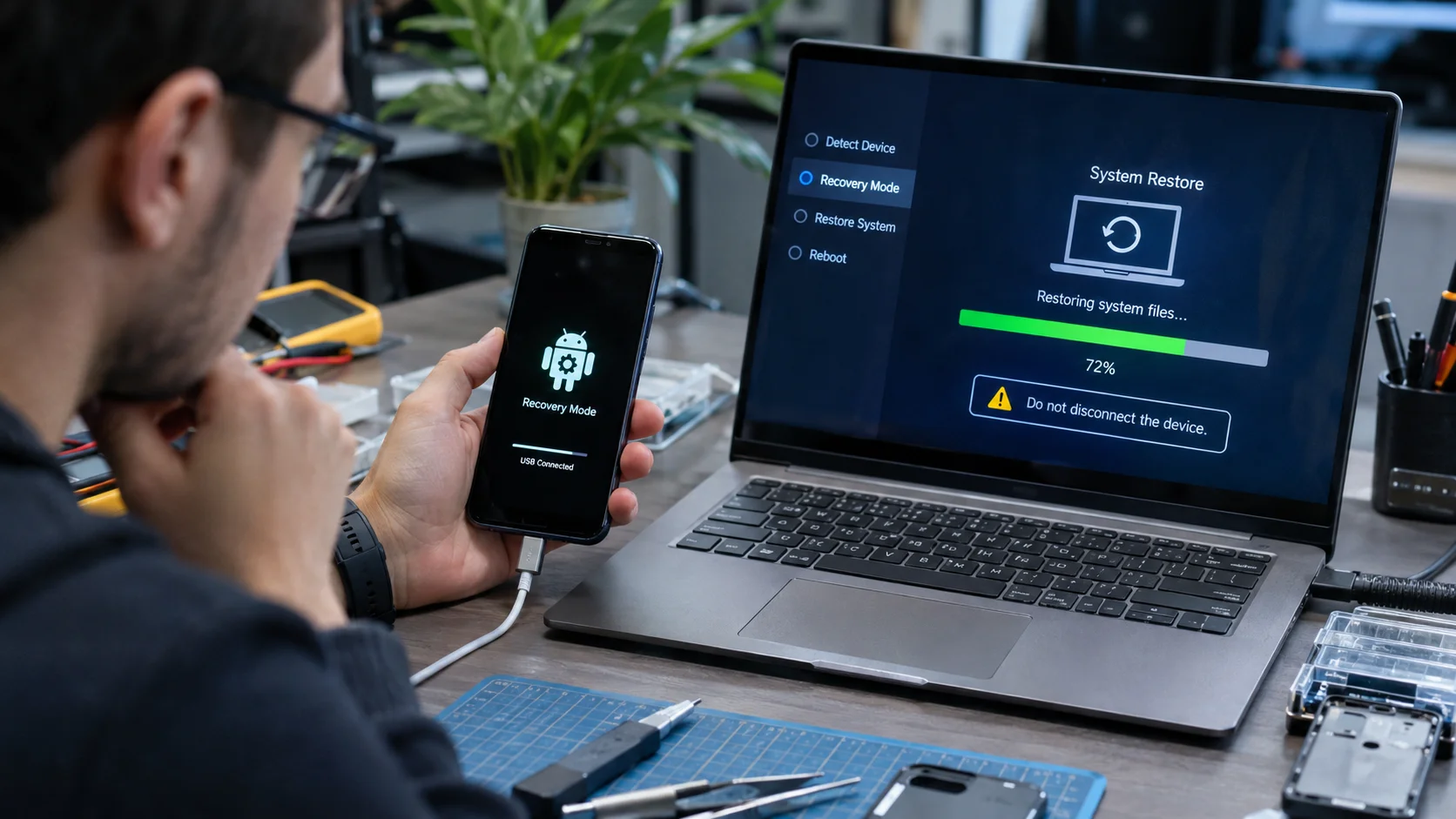
- Low battery: The device dies halfway through the install.
- Weak Wi-Fi: The download breaks, and the file arrives damaged.
- Full storage: The update has no room to unpack.
- Interrupted install: Someone restarts or unplugs the device too soon.
- Faulty software: The update itself has a bug.
Think of an update like moving house. If the truck breaks down in the middle of the trip, your things end up scattered everywhere. The device does not know where anything belongs.
Quick Signs Your Device Needs Help
Before you start, check what your device is doing. This tells you which fix to try first. The table below makes it easy.
| What You See | Likely Problem | Best First Fix |
|---|---|---|
| Logo appears again and again | Boot loop (soft brick) | Force restart, then recovery mode |
| Stuck on update screen | Frozen install | Wait 30 minutes, then force restart |
| Screen is black, but device vibrates | Display or software glitch | Charge fully, then force restart |
| Computer does not detect the device | Possible hard brick | Try a new cable, then use flashing tools |
| Error message after update | Corrupted system files | Factory reset in recovery mode |
| No response at all | Dead battery or hard brick | Charge for an hour, then try again |
Match your situation to a row. Then follow the steps in the next section.
Easy Fixes to Try First
Start with the simplest steps. Many people solve the problem in the first five minutes. You do not need any special skills.
Charge It and Wait
First, plug your device into a wall charger. Leave it for at least 30 minutes. A drained battery often looks like a dead device.
Use the original cable and charger if you can. A weak cable can fool you into thinking the device is broken. Be patient here.
Try a Force Restart
A force restart clears small glitches without erasing your data. The buttons differ by brand. Here are the most common combinations.
- Most Android phones: Hold Power and Volume Down for 10 to 15 seconds.
- iPhone 8 and newer: Press Volume Up, then Volume Down, then hold the Side button.
- Many tablets: Hold the Power button for 20 seconds.
Keep holding until the logo appears. If it works, your device may boot normally. If not, move on.
Using Recovery Mode to Repair the Damage
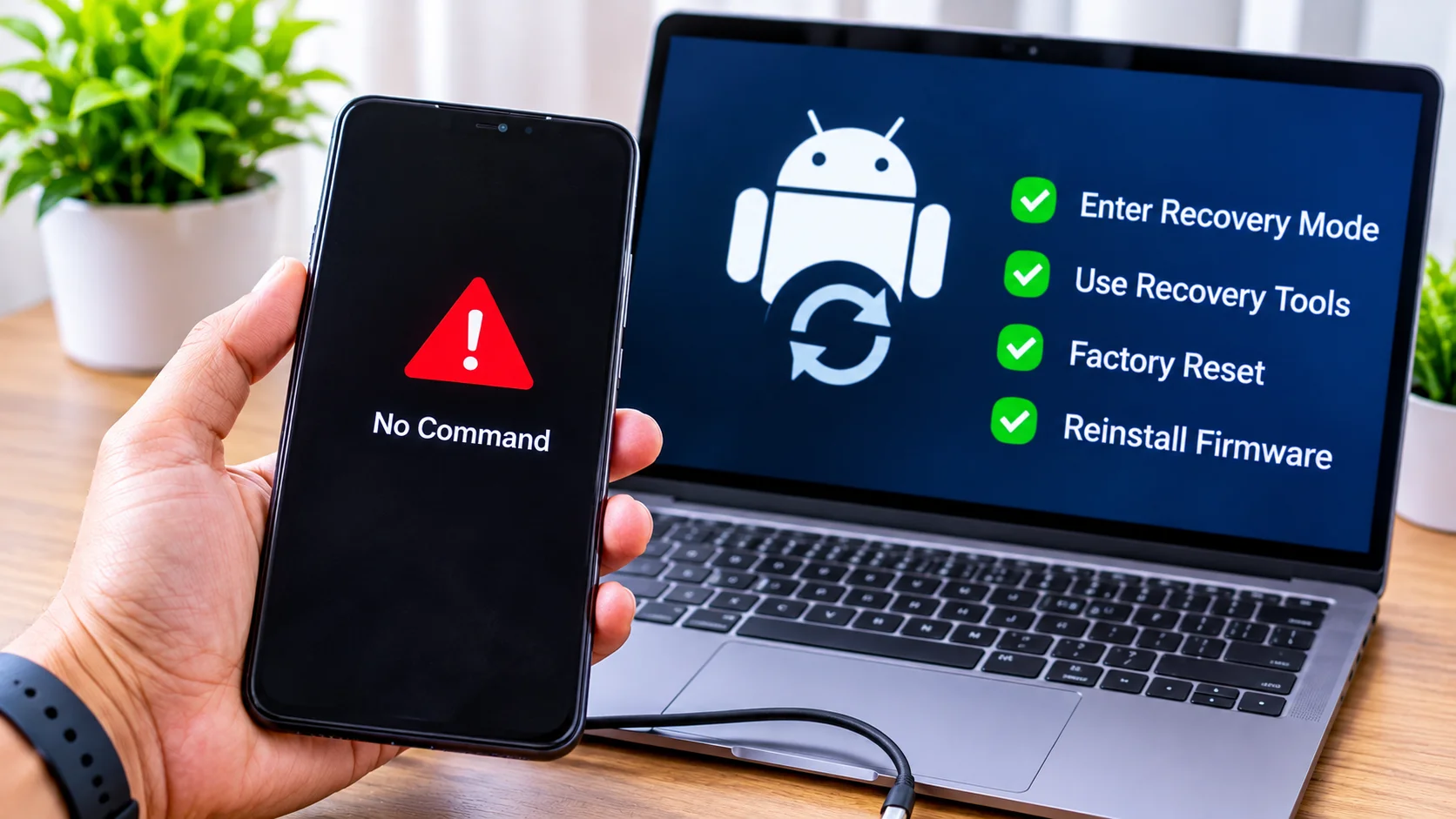
Recovery mode is a small, separate system built into your device. It runs even when the main software fails. That makes it your best friend after a bad update.
How to Enter Recovery Mode
Turn the device off first. Then press the right button combo for your model. On many Android phones, you hold Power and Volume Up together.
Search for your exact model name plus “recovery mode” if you feel unsure. Each brand does it a little differently. A quick search saves a lot of guessing.
Clear the Cache Partition
Once you see the recovery menu, use the volume keys to move. Choose “Wipe cache partition” and press Power to confirm. This deletes temporary files only. Your photos and apps stay safe.
Cache files often cause boot loops after an update. Clearing them fixes the problem more often than people expect. Restart your device and see what happens.
Use a Factory Reset as a Last Step
If the cache wipe fails, try “Factory reset” or “Wipe data.” This erases everything on the device. Use it only when other steps fail.
Yes, this hurts if you skipped backups. Still, a working phone beats a dead one. Restore your data from the cloud once the device turns on again.
Fixing a Bricked Device With a Computer
Sometimes the device cannot repair itself. That is when your computer steps in. A computer can send fresh software straight to your device.
For iPhones and iPads
Connect your iPhone to a Mac or a PC with iTunes. Put the device in recovery mode using the button steps for your model. Your computer will offer a choice to Update or Restore.
Always pick Update first. This reinstalls the system and tries to keep your data. If that fails, choose Restore, which erases the device.
For Android Devices
Most brands offer a free repair tool. Samsung users can try Odin or Smart Switch. Google Pixel owners can use the official Android Flash Tool in a web browser.
These tools install the official firmware again. Download only the file made for your exact model. The wrong file can cause real damage, so double-check the model number.
Smart Ways to Avoid Another Failed Update
Prevention is easier than repair. A few habits can protect you every time. They take only a minute or two.
Follow these simple rules before each update:
- Charge the battery to at least 50 percent.
- Connect to stable Wi-Fi, not mobile data.
- Free up at least 2 to 3 GB of storage.
- Back up your photos, contacts, and files.
- Never touch the device during the install.
Also, wait a few days before you install a brand-new update. Early versions sometimes carry bugs. Other users often find and report problems quickly, so patience pays off.
When to Call a Professional
Some problems go beyond home repair. If your device shows no sign of life after every step, stop. Extra tries may make things worse.
Visit the official service center first. If your warranty is active, the repair may cost nothing. A trusted local repair shop is a good second choice.
A technician can reach the hardware directly. They may reflash the boot chip or replace a damaged part. Ask for a price before you hand over the device.
Frequently Asked Questions
Can a bricked device really be fixed?
Yes, most can. Soft bricks usually need only a restart, recovery mode, or a computer repair tool.
Will I lose my data when I fix a bricked phone?
Not always. A cache wipe or a restart keeps your files, but a factory reset erases everything.
How long should I wait on a stuck update screen?
Wait at least 30 minutes. If the screen still does not change, force restart the device.
Is it safe to flash firmware myself?
It is safe if you use official files for your exact model. Wrong files can turn a soft brick into a hard brick.
Does a failed update void my warranty?
Usually no, because the update came from the maker. Check your warranty terms or ask the service center to be sure.
Final Thoughts
Learning how to fix a bricked device after failed update can save both time and money. Many devices recover through simple methods such as forced restarts, recovery mode, cache clearing, or firmware restoration. More serious cases may require factory resets or complete firmware reinstallation.
The most important step is identifying whether the device suffers from a soft brick or hard brick condition. Once you understand the cause, you can apply the appropriate recovery method with confidence. By keeping devices charged, backing up data regularly, and avoiding interruptions during updates, you can greatly reduce the risk of future bricking problems and keep your devices running smoothly.