

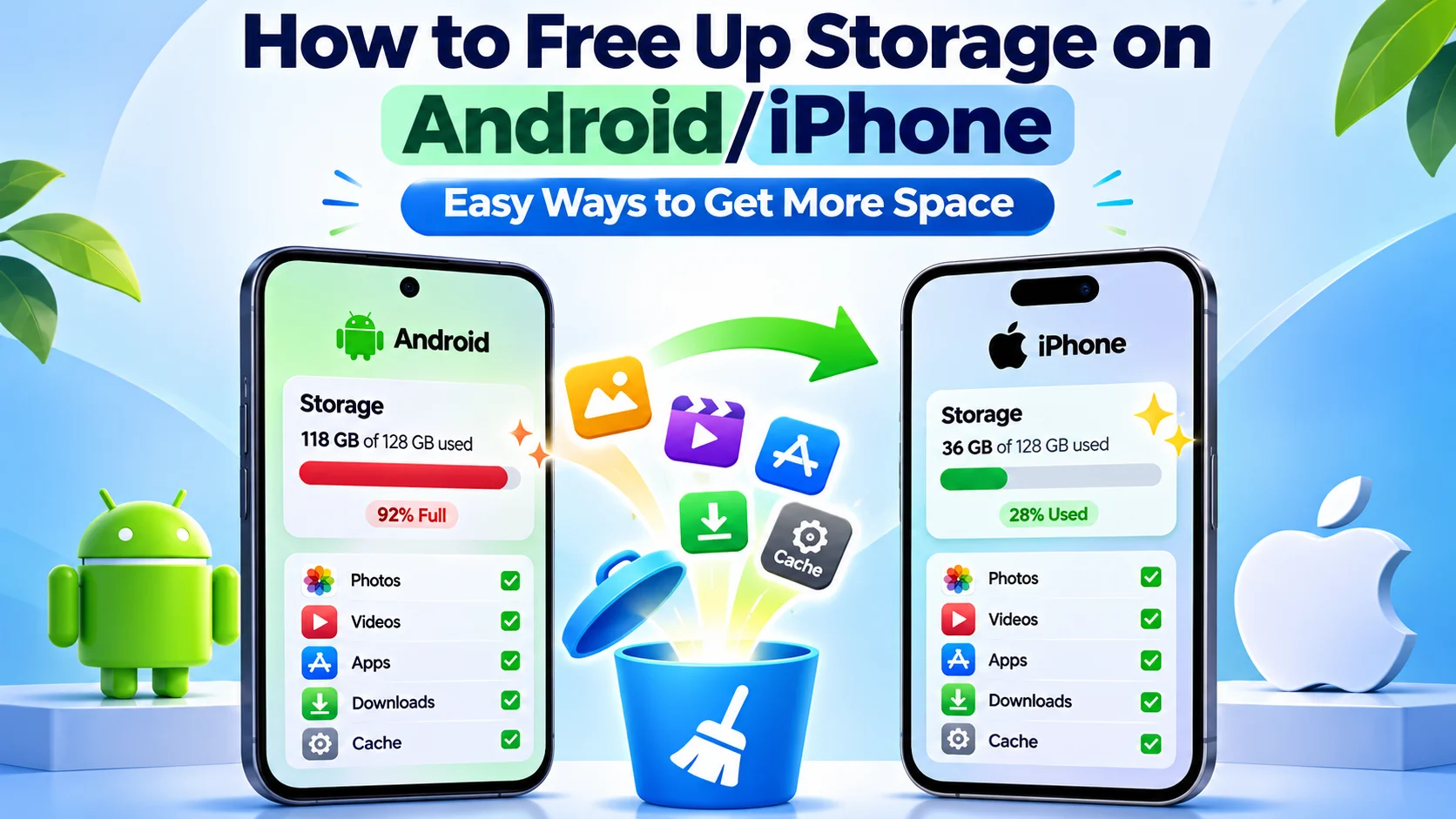
Running out of storage on your phone can feel frustrating. You may want to take a photo, download an app, or save an important file, but your phone keeps showing a storage warning. This problem affects both Android and iPhone users. Thankfully, you do not need to buy a new phone to fix it.
Learning how to free up storage on Android/iPhone can help you remove unwanted files, manage apps, and make better use of your available space. You can start with a few simple steps and see noticeable results. In this guide, we will explain practical ways to clean your phone without losing important photos, videos, or documents.
Why Your Phone Fills Up So Fast
Your phone holds more than you think. Apps, photos, videos, music, messages, and system files all share the same pool of space. Even a 128 GB phone can feel tight when the operating system alone takes 10 to 30 GB.
Most people do not notice the slow build-up. A few photos here, a few downloads there, and suddenly the phone says it is full.
The Biggest Space Hogs
Some items take far more room than others. Here are the usual suspects:
- Photos and videos: One minute of 4K video can take 200 to 400 MB. Burst photos and Live Photos add up fast too.
- Social media apps: TikTok, Instagram, and Facebook store temporary files called cache. That cache can grow to several gigabytes.
- Messaging apps: WhatsApp, Telegram, and iMessage save every photo, video, and voice note your friends send.
- Offline downloads: Music, podcasts, and movies you saved for a trip often stay on your phone for months.
- Old files: Forgotten PDFs, installers, and screenshots hide in your downloads folder.
How to Check What Eats Your Space
Before you delete anything, look at the numbers. This step takes about one minute, and it shows you where to focus.
On Android, open Settings and tap Storage. Some phones call it Device Care or Battery and Device Care. On iPhone, open Settings, tap General, and then tap iPhone Storage.
Both screens show a color bar that breaks down your space by category. Give it a few seconds to load. The biggest block shows you where to start.
Your Step-by-Step Plan: How to Free Up Storage on Android/iPhone
You do not need special tools. Your phone already has most of what you need. Work through these steps in order, and stop when you have enough room.
Start With Apps You Never Use
Apps are the easiest win. Scroll through your app list and ask yourself one question: “Did I open this in the last three months?” If the answer is no, delete it.
Think about that fitness app you tried once in January. Or the game your cousin told you to download. Each one can take 200 MB to 2 GB, and you can always download them again later.
On Android, open the Play Store, tap your profile picture, and choose Manage apps and device. Then tap Manage and sort by Least used. On iPhone, the iPhone Storage screen shows each app with the date you last used it.
Clear the Cache on Android
Cache is a set of temporary files that apps save to load faster. It helps a little, but it grows too large over time. Clearing it does not delete your accounts, photos, or settings.
Open Settings, tap Apps, and pick a big app such as Chrome or Instagram. Tap Storage, and then tap Clear cache. Do not tap Clear data unless you want to reset the app and sign in again.
Many phones also offer a one-tap clean-up in the Device Care menu. It works well, but the manual way gives you more control.
Offload Apps on iPhone
Apple gives you a clever trick called Offload App. It removes the app but keeps your documents and data. When you tap the icon again, the app downloads and picks up where you left off.
Go to Settings, then General, then iPhone Storage. Tap an app and choose Offload App. You can also turn on Offload Unused Apps and let your iPhone handle it on its own.
Safari also stores website data. Open Settings, tap Apps, tap Safari, and choose Clear History and Website Data. That clears the clutter and often frees up a few hundred megabytes.
Tame Your Photos and Videos
Photos and videos usually take the biggest bite. For many people, they fill half the phone or more. So this section matters most when you want to know how to free up storage on Android/iPhone for good.
Back Up First, Then Delete
Never delete photos before you back them up. Cloud storage keeps your memories safe even if you lose your phone. Google Photos, iCloud, Dropbox, and OneDrive all work well.
On Android, open Google Photos and check that backup is on. Then tap your profile picture and choose Free up space. The app removes copies that already sit safely in the cloud.
On iPhone, open Settings, tap your name, tap iCloud, and then tap Photos. Turn on Optimize iPhone Storage. Your phone keeps small previews and moves the full-size originals to iCloud.
Delete Duplicates, Screenshots, and Blurry Shots
Be honest. How many screenshots of recipes and receipts do you have? Most people have hundreds, and they never look at them again.
Open your photo app and sort through these groups first:
- Screenshots you no longer need
- Blurry or accidental photos
- Duplicate shots of the same scene
- Old screen recordings
The iPhone Photos app has a Duplicates album under Utilities. Google Photos suggests clean-ups in the Library tab. Both save you a lot of scrolling.
Shrink Your Video Settings
Video files grow huge at high quality. You do not need 4K at 60 frames per second for a family lunch. Lower settings still look great on a phone screen.
On iPhone, go to Settings, then Camera, then Record Video. Pick 1080p HD at 30 fps for everyday clips. On Android, open the camera app, tap the settings icon, and look for Video size or Video resolution.
This small change can cut your video file sizes by more than half. Save the top quality for special moments.
Clean Up Messages, Downloads, and Hidden Files
Photos get the attention, but messages and downloads quietly eat space too. These spots often hide gigabytes you forgot about.

Tame Your Chat Apps
Chat apps save every meme, voice note, and video. A busy group chat can fill your phone in a few months. Luckily, the fix takes only a few taps.
In WhatsApp, tap Settings, then Storage and data, then Manage storage. The app shows your biggest chats and files, so you can delete them in bulk. In iMessage, open Settings, tap Messages, and change Keep Messages from “Forever” to “1 Year” or “30 Days.”
Empty the Downloads Folder and Trash
Downloaded files pile up without a sound. Open the Files app on iPhone or the Files by Google app on Android. Look at the Downloads folder and delete old PDFs, installers, and videos.
Do not forget the trash. On iPhone, deleted photos sit in the Recently Deleted album for 30 days. On Android, Google Photos keeps deleted items in the trash for up to 60 days, so empty it if you need space right away.
Remove Offline Music and Streaming Downloads
Spotify, Apple Music, and Netflix can store gigabytes of offline content. Check each app’s download settings. Delete the shows you already watched and the playlists you never play.
A good habit helps here. Download a few episodes before a trip, and remove them when you get home.
Quick Comparison: Which Fix Saves the Most Space?
Not every method gives the same result. Some take seconds, while others take longer but free up much more room. This table shows how to free up storage on Android/iPhone by effort and payoff.
| Method | Works On | Typical Space Saved | Time Needed |
|---|---|---|---|
| Delete unused apps | Android and iPhone | 1 to 10 GB | 5 minutes |
| Clear app cache | Android | 0.5 to 5 GB | 5 minutes |
| Offload unused apps | iPhone | 1 to 8 GB | 3 minutes |
| Back up and remove photos | Android and iPhone | 5 to 50 GB | 20 minutes |
| Lower video quality | Android and iPhone | Saves space going forward | 2 minutes |
| Clean chat app media | Android and iPhone | 1 to 15 GB | 10 minutes |
| Empty downloads and trash | Android and iPhone | 0.5 to 10 GB | 5 minutes |
| Remove offline streaming files | Android and iPhone | 1 to 20 GB | 5 minutes |
Your results will vary, of course. If you take lots of videos, photos will give you the biggest win. If you stream a lot, start with offline downloads.
Build Habits That Keep Your Phone Light
Cleaning once feels great. Staying clean feels even better. A few small habits stop the problem from coming back, and they make it easier to remember how to free up storage on Android/iPhone whenever space runs low.
Set a Monthly Clean-Up Date
Pick one day each month, such as the first Sunday. Spend ten minutes checking your storage screen. Delete what you do not need and move on with your day.
Treat it like brushing your teeth. A little effort now saves you from a big mess later.
Use Cloud Storage and a Memory Card
Cloud storage keeps files off your phone while you still reach them from anywhere. Most services give you a small free plan, and paid plans cost a few dollars a month. For many people, that price beats buying a bigger phone.
Many Android phones also accept a microSD card. A 128 GB card costs very little and holds a lot of photos and videos. iPhones do not have a card slot, so a cloud plan or a small external drive works better.
Stream Instead of Download
Think before you download. Do you need that song offline, or can you stream it on Wi-Fi? Streaming uses almost no space, and your phone stays light.
Common Mistakes to Avoid
Even careful people slip up. Watch out for these mistakes when you learn how to free up storage on Android/iPhone.
First, do not delete photos before you back them up. Check your cloud account on another device or on the web. Make sure the pictures appear there.
Second, do not trust random “cleaner” apps. Many show scary warnings and push ads, and some collect your data. Your phone’s built-in tools work well and cost nothing.
Third, do not tap Clear data when you mean Clear cache. Clear data wipes the app’s saved information, and you may lose your progress or logins.
Finally, do not delete system files or folders you do not understand. If you feel unsure, leave it alone.
Frequently Asked Questions
What is the quickest way to free up space on my phone?
Delete apps you no longer use, and clear the cache on Android or offload apps on iPhone. These steps take only a few minutes and often free up several gigabytes.
Will clearing the cache delete my photos or messages?
No, clearing the cache removes only temporary files. Your photos, messages, and logins stay safe.
Is it safe to delete photos after I back them up to the cloud?
Yes, as long as you confirm the backup finished. Open your cloud account on another device and check that your photos appear there.
How much free space should I keep on my phone?
Aim for at least 10 to 15 percent of your total storage. That keeps your phone fast and leaves room for updates and new photos.
Do I need a paid cloud plan to save space?
Not always, because free plans work for light users. If you take many photos and videos, a small paid plan often costs less than a new phone.
Final Thoughts:
Running out of phone storage does not mean you need a new device. You can recover valuable space by deleting unwanted photos, removing unused apps, clearing temporary files, and managing old downloads. Cloud backups and regular storage checks can also help you protect important information.
The best way to manage your device is to clean it regularly instead of waiting for a storage warning. Whether you use Android or iPhone, these simple steps can help you keep your phone organized and ready for everyday use. Once you understand how to free up storage on Android/iPhone, managing your available space becomes much easier.