

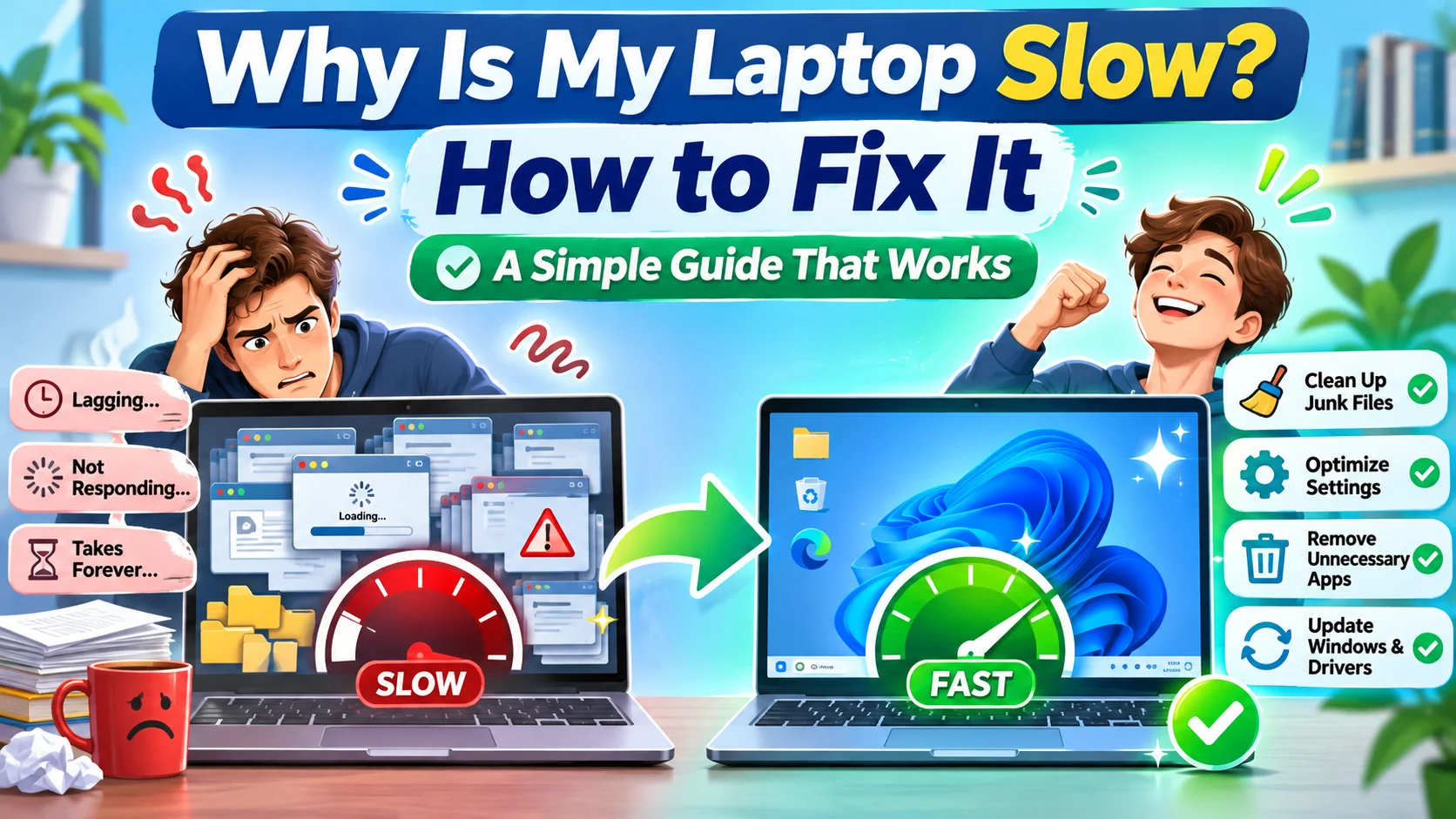
Your laptop used to open apps in a snap. Now it takes forever to wake up, and the fan sounds like a tiny jet engine. If you keep asking yourself, “why is my laptop slow and how to fix it,” you are in the right place.
Good news first. Most slow laptops do not need a repair shop or a new purchase. You can fix many problems in an afternoon with a few simple steps. This guide walks you through the causes, the fixes, and the habits that keep your laptop quick for years.
Spot the Signs of a Struggling Laptop
Before you fix anything, look at how your laptop acts. Slow behavior comes in many forms, and each one points to a different cause. Paying attention now saves you time later.
Here are the signs people notice most often. Your laptop takes more than two minutes to start. Apps freeze or stop responding. Typing lags behind your fingers. The fan runs loud even when you only read email.
Do any of these sound familiar? Then keep reading. The next section explains what usually goes wrong behind the screen.
The Real Reasons Your Laptop Feels Slow
Laptops slow down for a handful of common reasons. Think of your laptop like a kitchen. If the counter is full, the cook has no space to work. The same idea applies here.
Too Many Programs Launch at Startup
Many apps start on their own when you turn on your laptop. Music players, chat tools, and update helpers all run in the background. Each one eats a bit of memory and power.
A friend of mine once had 27 startup apps on a three-year-old laptop. After she turned off 20 of them, her laptop booted twice as fast. Startup clutter is one of the biggest answers to “why is my laptop slow and how to fix it.”
Your Storage Drive Is Almost Full
Your laptop needs free space to run well. Windows uses part of your drive as a temporary workspace. When the drive fills up, that workspace shrinks and everything slows down.
Aim to keep at least 15 to 20 percent of your drive free. A 512 GB drive should have about 80 to 100 GB open. Old downloads, duplicate photos, and big video files usually cause the problem.
Your Laptop Has Too Little Memory
RAM is your laptop’s short-term memory. It holds the apps and tabs you use right now. When RAM runs out, your laptop moves data to the drive, and that process feels painfully slow.
In 2026, 8 GB works for basic tasks like email and web browsing. If you edit photos, join video calls all day, or keep many browser tabs open, 16 GB feels much better. A laptop with 4 GB will struggle with almost anything today.
You Still Use an Old Hard Drive
Older laptops often use a hard disk drive, or HDD. It has spinning parts, and it reads data slowly. A solid-state drive, or SSD, has no moving parts and works many times faster.
This single difference explains why some laptops feel sluggish even when they have plenty of memory. If your laptop still has an HDD, you have found a major clue. We will cover the upgrade later in this guide.
Viruses and Unwanted Apps Hide in the Background
Malware can use your processor without your knowledge. Some programs mine cryptocurrency, show endless ads, or spy on your activity. Even harmless junk apps, often called bloatware, drain your resources.

Bloatware comes pre-installed on many new laptops. You never asked for it, but it runs anyway. A quick cleanup can remove it in minutes.
Heat and Dust Choke Your Laptop
Laptops make heat, and they need airflow to cool down. Dust builds up inside the vents over time and traps that heat. When the processor gets too hot, it slows itself down on purpose to avoid damage.
This effect is called thermal throttling. If your laptop feels hot on your lap and the fan roars, heat likely plays a role. Cleaning the vents often brings back lost speed.
Old Software and Drivers Cause Trouble
Software updates fix bugs and improve performance. When you skip them for months, small problems pile up. Outdated drivers, especially for graphics and Wi-Fi, can also cause lag and crashes.
Updates may feel annoying, but they matter. Many people blame their hardware when a simple update would solve the issue.
Too Many Browser Tabs Eat Your Memory
Web browsers love memory. Each open tab uses anywhere from 50 MB to several hundred MB. Add a few extensions, and your browser alone can fill 4 GB of RAM.
Do you keep 40 tabs open “just in case”? Be honest. Your laptop feels every single one of them.
Quick Fixes You Can Try in 10 Minutes
Now comes the fun part. These fixes cost nothing and take little time. Start here before you try anything bigger.
Restart Your Laptop First
It sounds too simple, but a restart clears temporary glitches and frees up memory. Many people leave their laptops in sleep mode for weeks. A fresh restart can make a big difference.
Make it a habit to restart at least once a week. Choose “Restart” instead of “Shut down,” because Windows sometimes saves a partial state during a normal shutdown.
Trim Your Startup List
Open Task Manager by pressing Ctrl + Shift + Esc. Click the Startup tab and look at the “Startup impact” column. Right-click any app with a high impact that you do not need right away, and choose Disable.
Do not worry, you can turn an app back on later. Keep your antivirus and system tools enabled, and disable the rest.
Free Up Storage Space
Go to Settings, then System, then Storage. Windows shows you what uses the most space. Delete files you no longer need and empty the Recycle Bin.
Use the built-in Storage Sense tool to clean temporary files automatically. Also uninstall apps you have not opened in months. Each one you remove gives your laptop more room to breathe.
Close Extra Tabs and Apps
Open Task Manager and click the Processes tab. Sort by Memory or CPU to see which apps work hardest. If a program you do not use sits at the top, end the task.
For your browser, try a tab manager extension that puts unused tabs to sleep. It keeps your tabs ready but stops them from using memory.
Scan for Malware
Windows Security comes built in, and it does a solid job. Open it, choose Virus & threat protection, and run a full scan. The scan may take an hour, so start it before lunch.
If you want a second opinion, add a trusted free scanner such as Malwarebytes. Avoid random “PC cleaner” tools that promise miracles. Many of them cause more harm than good.
Update Windows and Your Drivers
Open Settings and go to Windows Update. Click “Check for updates” and install everything you find. Restart when the laptop asks you to.
For drivers, visit your laptop maker’s support page. Download the newest graphics and chipset drivers for your exact model. This small step often fixes lag in games and video apps.
Switch to a Better Power Mode
Windows offers power modes that trade battery life for speed. If your laptop sits on a desk with the charger plugged in, choose “Best performance.” You will find this under Settings, System, Power & battery.
On battery, the “Balanced” mode works well for most people. A laptop stuck in “Battery saver” mode will always feel slow.
Symptoms, Causes, and Fixes at a Glance
Still not sure what hurts your laptop the most? This table matches common symptoms to their likely causes. Use it as a quick map when you search for “why is my laptop slow and how to fix it.”
| What You Notice | Likely Cause | Best Fix | Time Needed |
|---|---|---|---|
| Slow startup | Too many startup apps | Disable them in Task Manager | 5 minutes |
| Apps freeze when you open many | Low RAM | Close tabs or add more RAM | 10 minutes to 1 hour |
| Everything feels slow, even simple tasks | Old HDD | Upgrade to an SSD | 1 to 2 hours |
| Loud fan and hot case | Dust and heat | Clean vents, use a cooling pad | 20 minutes |
| Pop-ups and strange behavior | Malware or bloatware | Run a full scan, remove junk apps | 1 hour |
| Warning about low disk space | Full storage drive | Delete files, run Storage Sense | 15 minutes |
| Random crashes and lag | Outdated drivers or updates | Update Windows and drivers | 30 minutes |
| Slow only on battery | Battery saver mode | Change the power mode | 2 minutes |
Bigger Fixes When Quick Tricks Fall Short
Sometimes the easy fixes help only a little. If your laptop still drags, it is time to look at hardware or a fresh start. Do not panic. These steps sound big, but many people do them at home.
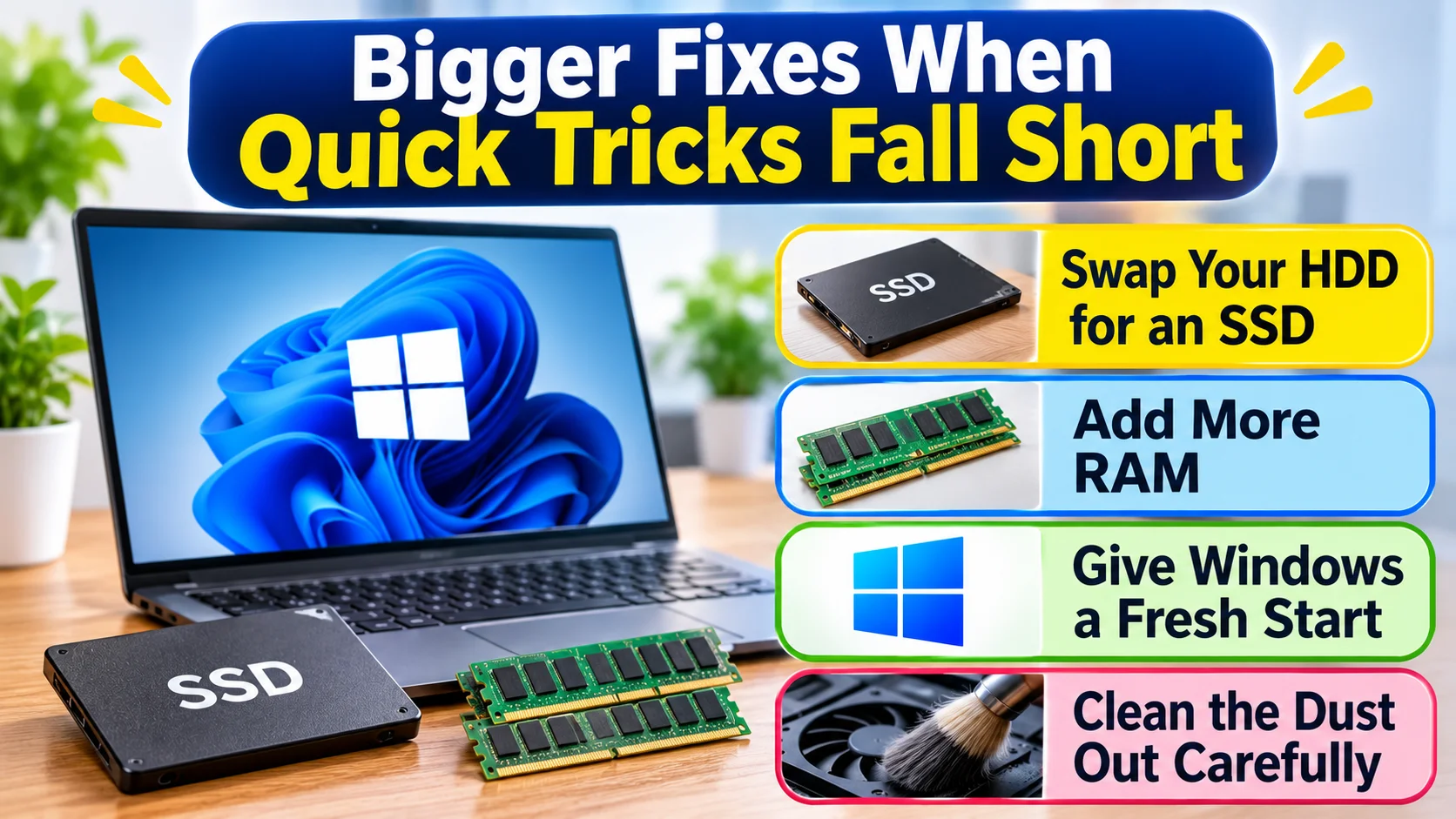
Swap Your HDD for an SSD
This upgrade gives you the biggest speed boost for the lowest price. A laptop that took three minutes to boot may start in 20 seconds with an SSD. Files open fast, and apps launch almost at once.
A good 500 GB SSD costs far less than a new laptop. You can clone your old drive with free software, so you keep your files and settings. If that sounds scary, a local repair shop can do it in under an hour.
Add More RAM
Many laptops let you add or replace memory sticks. Check your model’s manual or use a tool like Crucial’s System Scanner to see what fits. Some thin laptops solder the RAM to the board, so you cannot upgrade it.
If your laptop has an open slot, adding 8 GB often costs little. You will notice smoother multitasking right away. It works especially well if you keep many tabs and apps open.
Give Windows a Fresh Start
After years of use, Windows collects clutter that no cleanup tool can fully remove. A reset gives you a clean system, like a brand-new laptop. Go to Settings, System, Recovery, and choose “Reset this PC.”
Back up your photos, documents, and other files first. You can keep your files during the reset, but a backup protects you if something goes wrong. After the reset, install only the apps you truly need.
Clean the Dust Out Carefully
Turn off your laptop and unplug it. Use a can of compressed air to blow dust out of the vents in short bursts. Hold the fan still with a toothpick so it does not spin too fast and get damaged.
If you feel comfortable, open the back panel and clean the fan directly. Watch a video guide for your exact model first. Every few years, you can also replace the old thermal paste on the processor for better cooling.
Smart Habits That Keep Your Laptop Fast
Fixing a slow laptop feels great. Keeping it fast feels even better. A few small habits protect your work for the long run.
Restart weekly, and install updates when they appear. Check your storage once a month and delete what you do not need. Install new apps only from trusted sources, and read each setup screen carefully so you skip the extra offers.
Use your laptop on a hard, flat surface. Beds and sofas block the vents and trap heat. A cheap laptop stand also helps airflow and saves your neck.
Finally, back up your files. Use cloud storage or an external drive. A backup gives you peace of mind and makes any future reset painless.
Should You Repair, Upgrade, or Replace?
Every laptop reaches a point where more fixes do not make sense. How do you know when you have hit that point? Think about age, cost, and how you use the machine.
A laptop under five years old usually deserves an upgrade. An SSD or extra RAM can add years to its life. A laptop older than seven or eight years, with a dying battery and a weak processor, may cost more to fix than it is worth.
Here is a simple rule. If repairs cost more than half the price of a comparable new laptop, buy a new one. Also consider replacing it if it can no longer run the latest version of Windows, since it will lose security updates.
When you shop, look for at least 16 GB of RAM, an SSD, and a recent processor. Those three features make the biggest difference to everyday speed.
Frequently Asked Questions
How often should I restart my laptop?
Restart it at least once a week. This clears temporary glitches and frees up memory.
Can a virus make my laptop slow?
Yes, malware can use your processor and memory in secret. Run a full scan with Windows Security to check.
Will adding more RAM speed up my laptop?
It helps if you run out of memory when you multitask. If you only browse lightly, an SSD gives a bigger boost.
Is it worth upgrading an old laptop to an SSD?
For most laptops under seven years old, yes. It costs little and often makes the laptop feel brand new.
How do I know if my laptop is overheating?
Look for a loud fan, a very hot case, and sudden slowdowns. Free tools like HWMonitor show your exact temperatures.
Final Thoughts
So, why is my laptop slow and how to fix it? The answer usually comes down to a few causes: crowded startup lists, full storage, low memory, an old hard drive, heat, malware, or outdated software. Each one has a clear fix, and many cost you nothing.
Start with the quick wins. Restart your laptop, trim your startup apps, free up space, and run a scan. If speed stays poor, move on to an SSD, more RAM, or a fresh Windows install.
Build good habits, and your laptop will thank you. A little care each month keeps it quick, quiet, and ready when you need it. Give these steps a try today, and enjoy a faster laptop by tonight.