

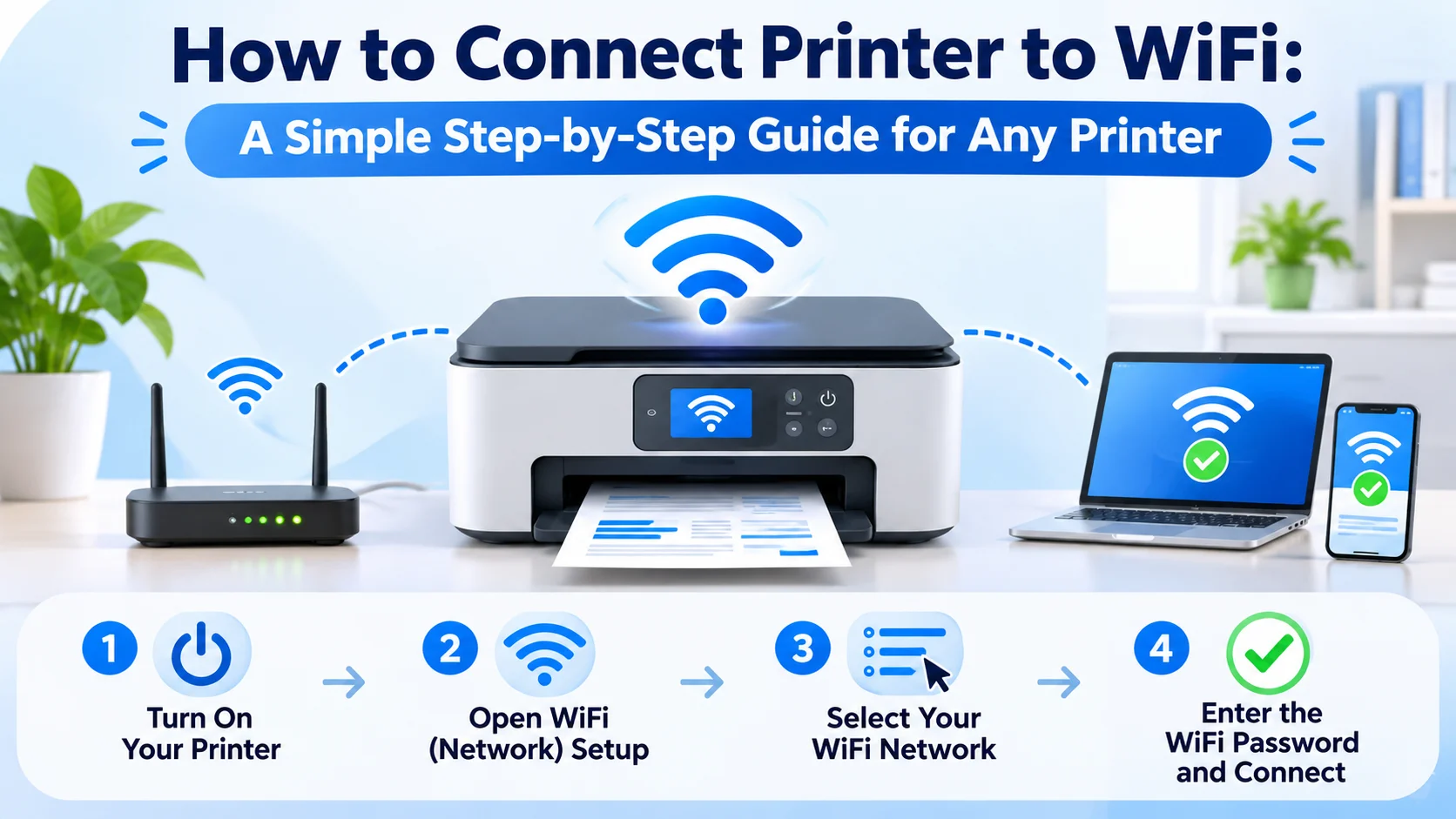
Connecting a printer to WiFi makes printing easier and more convenient. You can print documents, photos, school assignments, and other files without connecting a USB cable. You can also print from different devices, including laptops, desktop computers, smartphones, and tablets.
However, setting up a wireless printer can sometimes feel confusing, especially if you have never done it before. The good news is that most modern printers offer simple wireless setup options. You only need a working WiFi network, a compatible printer, and a few minutes.
In this guide, you will learn how to connect printer to wifi using different methods. We will also explain how to connect printers to Windows computers, MacBooks, Android phones, and iPhones. Let’s get started!
What Do You Need Before Connecting a Printer to WiFi?
Before starting the setup, check a few things to avoid connection problems. A little preparation can make the entire process much easier.
Here are the basic things you need:
- Wireless printer: Your printer must support WiFi connectivity.
- WiFi router: Make sure your home or office network works properly.
- Network name and password: Keep your WiFi name (SSID) and password nearby.
- Computer or smartphone: You may need a device to complete the setup.
- Printer software: Some printers require a mobile app or computer driver.
Most wireless printers support 2.4 GHz WiFi networks. Some newer models also support 5 GHz connections. Check your printer manual to confirm which frequency it supports.
Also, place your printer close to the router during setup. A strong signal helps the printer find your network without difficulty.
How to Connect Printer to WiFi Using the Control Panel
The easiest way to connect many wireless printers involves their built-in control panels. You can complete the process without using a computer or USB cable.
The exact steps may differ depending on your printer brand and model. However, most printers follow a similar process.
Step 1: Turn On Your Wireless Printer
First, connect your printer to a power outlet and press the power button. Wait until the printer finishes starting up.
Make sure the printer has enough paper and does not show any error messages. If your printer has a touchscreen, open its home screen.
Step 2: Open the Wireless Settings
Find the WiFi, Wireless, or Network option on your printer screen. Some models display a small wireless icon.
Tap the option to open the network settings. You may see options such as Wireless Setup Wizard, WiFi Setup, or Network Configuration.
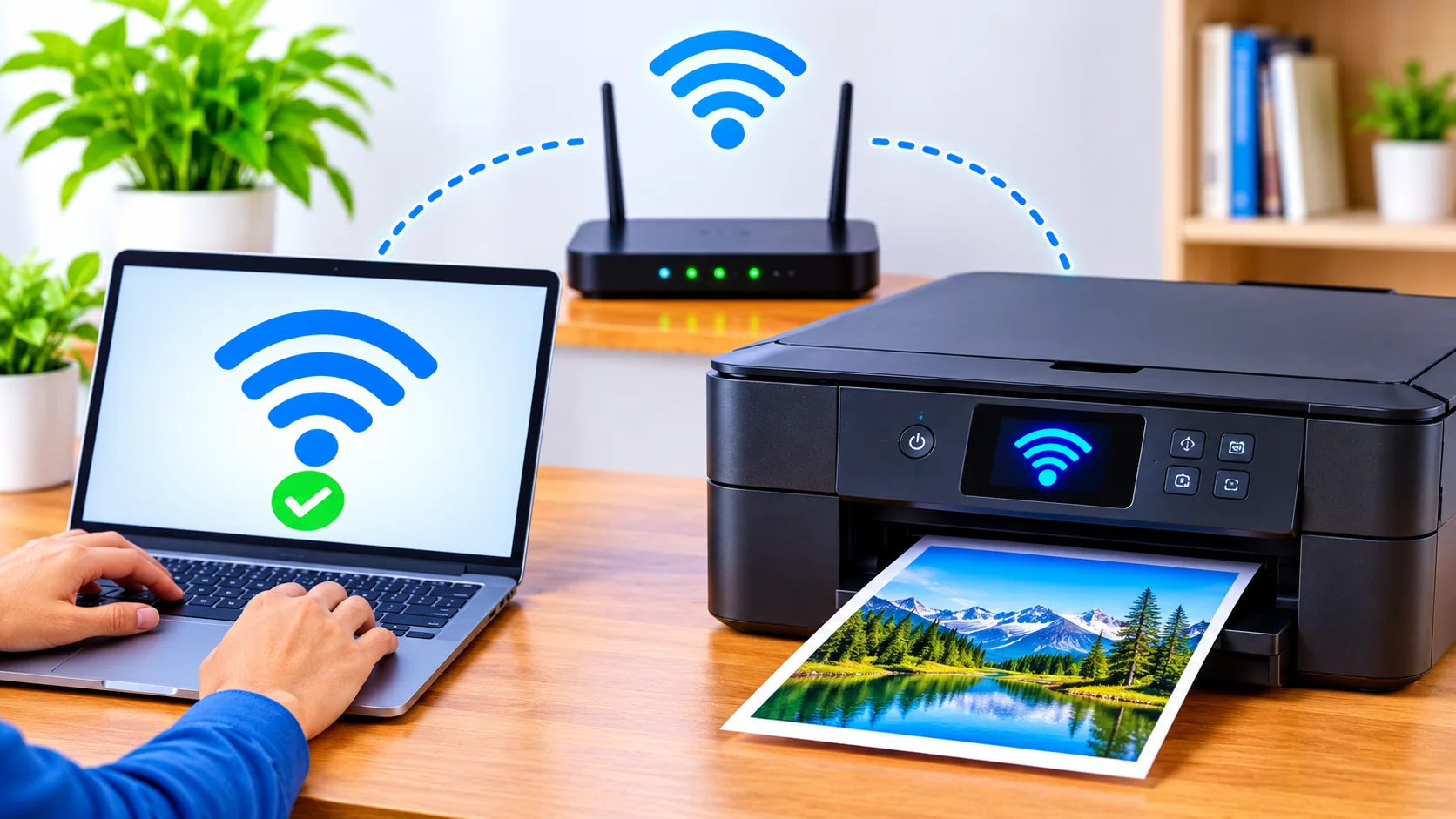
Step 3: Find Your WiFi Network
Select the Wireless Setup Wizard or a similar option. Your printer will search for nearby wireless networks.
A list of available WiFi networks should appear on the screen. Find your home or office network and select its name.
Step 4: Enter Your WiFi Password
Now enter your wireless network password carefully. Remember that WiFi passwords usually recognize uppercase and lowercase letters.
Check the password before continuing. A single incorrect character can prevent your printer from connecting.
Step 5: Confirm the Connection
Tap Connect, OK, or Apply to complete the setup. Your printer may take a few seconds to communicate with the router.
Look for a WiFi symbol or Connected message on the display. Once the printer connects, you can start printing wirelessly.
How to Connect Printer to WiFi Using WPS
WPS stands for WiFi Protected Setup. It allows compatible printers to connect to a wireless router without manually entering the network password.
This method works well if both your printer and router support WPS.
Follow These Simple Steps
- Turn on your printer.
- Open the printer’s wireless or network settings.
- Select the WPS option.
- Press the WPS button on your WiFi router.
- Wait while the printer connects to the network.
- Check the printer screen for a successful connection message.
Some printers require you to hold the wireless button for a few seconds instead of selecting WPS from a menu.
Important: Press the router’s WPS button only when your printer asks you to do so. Most routers keep the WPS connection window open for a limited time.
WPS offers a quick setup method, but not every router or printer supports it. If you cannot find this option, use the standard wireless setup method instead.
How to Connect Printer to WiFi on Windows 11 and Windows 10
After connecting your printer to your wireless network, you can add it to your Windows computer. Windows usually finds compatible printers automatically.
Follow these steps to finish the setup.
Step 1: Open Windows Settings
Click the Start menu and select Settings. You can also press Windows + I on your keyboard to open Settings quickly.
Step 2: Find the Printers and Scanners Option
In Windows 11, select Bluetooth & devices and then choose Printers & scanners.
In Windows 10, open Devices and select Printers & scanners.
Step 3: Add Your Wireless Printer
Click the Add device or Add a printer or scanner option. Windows will search for available printers on your network.
Wait for your printer’s name to appear. Select it and click Add device.
Step 4: Install the Required Driver
Windows may install the correct printer driver automatically. If it asks for additional software, follow the instructions on your screen.
Once installation finishes, your printer should appear in the printer list.
Step 5: Print a Test Page
Open your printer settings and select the option to print a test page. This step helps you confirm that the computer and printer communicate correctly.
If the test page prints successfully, your wireless setup is complete.
How to Connect Printer to WiFi on a MacBook
Mac users can also connect a wireless printer without much effort. First, make sure your printer and MacBook use the same WiFi network.
Follow these steps:
- Click the Apple menu in the top-left corner.
- Open System Settings.
- Select Printers & Scanners.
- Click Add Printer, Scanner, or Fax.
- Wait for your Mac to find nearby printers.
- Select your wireless printer.
- Click Add to complete the setup.
Your Mac may download or install the required printer software automatically. If it asks you to choose a driver, select the correct option for your printer model.
Try printing a document to check the connection. If your printer does not appear, restart both devices and try again.
How to Connect Printer to WiFi Using a Smartphone
You do not always need a computer to set up a wireless printer. Many printer manufacturers offer mobile apps that help users connect and manage their devices.
These apps also make it easier to print photos, documents, and web pages directly from a phone.
Connect a Printer to an Android Phone
Follow these steps to connect your printer using an Android device:
- Connect your Android phone to your home WiFi.
- Open Google Play Store.
- Search for your printer manufacturer’s official app.
- Download and open the app.
- Follow the instructions to find your printer.
- Select your printer and complete the setup.
Some Android phones also include a built-in printing service. Open Settings and search for Printing to check the available options.
Connect a Printer to an iPhone
iPhone users can print through Apple AirPrint if their printer supports this feature.
Here is how to do it:
- Connect your iPhone to the same WiFi network as your printer.
- Open a photo, PDF, email, or document.
- Tap the Share icon.
- Scroll down and select Print.
- Tap Select Printer.
- Choose your wireless printer.
- Select the number of copies and tap Print.
AirPrint does not require you to install a separate printer driver on your iPhone. However, your printer must support AirPrint for this method to work.
WiFi Printer Setup Methods Compared
Different wireless setup methods work better for different situations. The following table compares the most common options.
| Connection Method | What You Need | Difficulty | Best For |
| Control Panel | Printer and WiFi password | Easy | Direct printer setup |
| WPS | Compatible router and printer | Very Easy | Quick wireless connection |
| Windows Settings | Windows computer | Easy | Laptop and desktop printing |
| Mac Settings | MacBook or Mac | Easy | Apple computer users |
| Mobile App | Android or iPhone | Easy | Smartphone printing |
| AirPrint | Compatible printer and iPhone | Very Easy | Wireless printing from Apple devices |
Choose a method that matches your printer’s features. If one method does not work, you can try another supported option.
How to Connect Printer to WiFi Without a Screen
Some wireless printers do not have touchscreens or built-in displays. These models often use a mobile app, computer software, or special wireless buttons for setup.
You can still connect them to your home network.
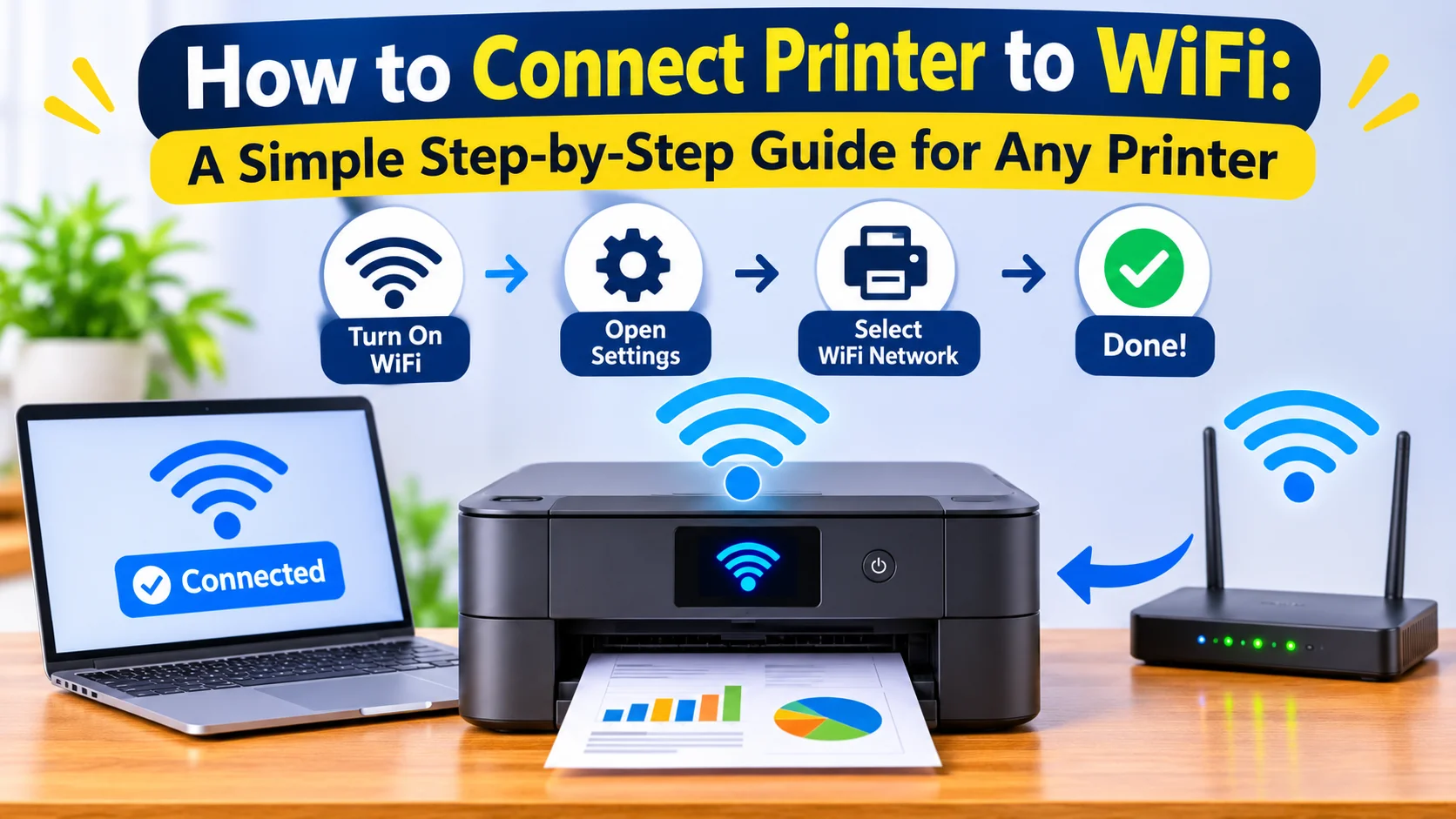
Use the Manufacturer’s Mobile App
Download the official app for your printer brand. Open the app and follow its wireless setup instructions.
Many apps guide you through the process and help transfer your WiFi details to the printer.
Use a Computer and USB Cable
Some printer models support wireless setup through a temporary USB connection.
Connect your printer to your computer using a USB cable. Open the manufacturer’s setup software and follow the instructions to select your WiFi network.
Enter your network password when the software asks for it. Once the printer connects, you can remove the USB cable if the setup instructions allow it.
Common WiFi Printer Problems and How to Fix Them
Sometimes, a wireless printer refuses to connect even when you follow every setup step. Incorrect passwords, weak signals, and network settings often cause these problems.
Here are some common issues and their solutions.
1. Printer Cannot Find the WiFi Network
If your printer cannot find your network, check the distance between the printer and router. Thick walls and electronic devices can weaken wireless signals.
Restart your router and printer. Also, check whether your printer supports your router’s WiFi frequency.
2. Incorrect WiFi Password
A wrong password can stop the printer from joining your network. Check every letter, number, and special character before trying again.
If you recently changed your WiFi password, update the network details on your printer.
3. Printer Shows Offline
A printer may appear offline when your computer cannot communicate with it.
Restart the printer and computer. Then check your Windows or Mac printer settings to confirm that you selected the correct device.
4. Printer and Computer Use Different Networks
Your printer and computer usually need to connect to the same local network for normal wireless printing.
For example, if your laptop uses your home WiFi but your printer connects to a guest network, they may not communicate properly. Connect both devices to the same network and try printing again.
5. Outdated Printer Drivers
Old or incorrect drivers can cause printing and connection problems. Visit your printer manufacturer’s official website and look for the latest driver for your model.
Download the correct software for your operating system and follow the installation instructions.
6. Router Does Not Support the Printer’s WiFi Band
Some older printers only support 2.4 GHz networks. If your router uses only a 5 GHz network, the printer may not find it.
Check your router settings and enable a compatible 2.4 GHz network if your printer requires one.
Popular Printer Brands and Their WiFi Setup Options
Most major printer brands offer wireless setup features. However, their menu names and software options can differ.
| Printer Brand | Common Setup Option | Useful Software |
| HP | Wireless Setup Wizard or WPS | HP Smart |
| Canon | Wireless LAN Setup | Canon PRINT |
| Epson | WiFi Setup or WPS | Epson Smart Panel |
| Brother | WLAN Setup Wizard | Brother Mobile Connect |
| Samsung | Wireless Network Settings | Samsung printer software |
Always check your exact printer model before following brand-specific instructions. Some older models may not support the latest mobile apps or wireless features.
You can also visit the manufacturer’s official support website to find setup guides, drivers, and troubleshooting instructions.
Tips for Maintaining a Stable Wireless Printer Connection
Once your printer connects successfully, a few simple habits can help prevent future problems.
- Keep the printer near your router: A shorter distance can improve signal strength.
- Use a stable WiFi network: Avoid frequently changing your network name or password.
- Update printer software: Install driver updates when necessary.
- Restart devices occasionally: A simple restart can fix temporary connection issues.
- Check ink and paper: Low ink and empty paper trays can interrupt printing.
- Avoid unnecessary network changes: Keep your printer and computer on a compatible network.
If several people use the same printer, give everyone the correct printer name and network details. This makes wireless printing easier at home or in a small office.
Frequently Asked Questions
How do I connect my printer to WiFi for the first time?
Turn on your printer and open its wireless settings. Select your WiFi network, enter the password, and confirm the connection.
Can I connect my printer to WiFi without a computer?
Yes, many wireless printers support direct setup through their control panels or mobile apps. You can also use WPS if your printer and router support it.
Why is my wireless printer not connecting to WiFi?
Incorrect passwords, weak signals, and unsupported WiFi frequencies can cause connection problems. Restart your router and printer, then check your network settings.
Can I print from my phone without a USB cable?
Yes, you can print wirelessly using your printer manufacturer’s mobile app. iPhone users can also use AirPrint with compatible printers.
Do my printer and computer need the same WiFi network?
In most home and office setups, both devices should use the same local network. Guest networks or separate WiFi connections may prevent them from communicating.
Conclusion
Learning how to connect printer to wifi does not have to be difficult. You can connect most wireless printers through their built-in control panels, WPS, mobile apps, or computer settings.
Start by checking your printer’s wireless features and making sure you have the correct WiFi password. Then choose the setup method that works best for your device. If you face connection problems, check your network, restart your devices, and update the printer drivers.
Once everything works correctly, you can print documents and photos from your computer or smartphone without dealing with USB cables. A few simple setup steps can make everyday printing much easier.
[…] to Enable Two-Factor Authentication and Keep Your Accounts Safe How to Connect Printer to WiFi: A Complete Step-by-Step Guide How to Set Up a New Router Step by Step: A Simple Guide for Beginners How to Back Up Files to […]