

You just bought a new router. Now you want fast, steady Wi-Fi in every room. The good news is that setup takes less time than most people expect. This guide shows you how to set up a new router step by step. You will not need any tech skills. Grab a coffee, follow along, and you will be online in about 20 minutes.
What You Need Before You Start
A little prep makes the whole job smoother. Gather a few items first so you do not stop halfway.
Check Your Box and Gear
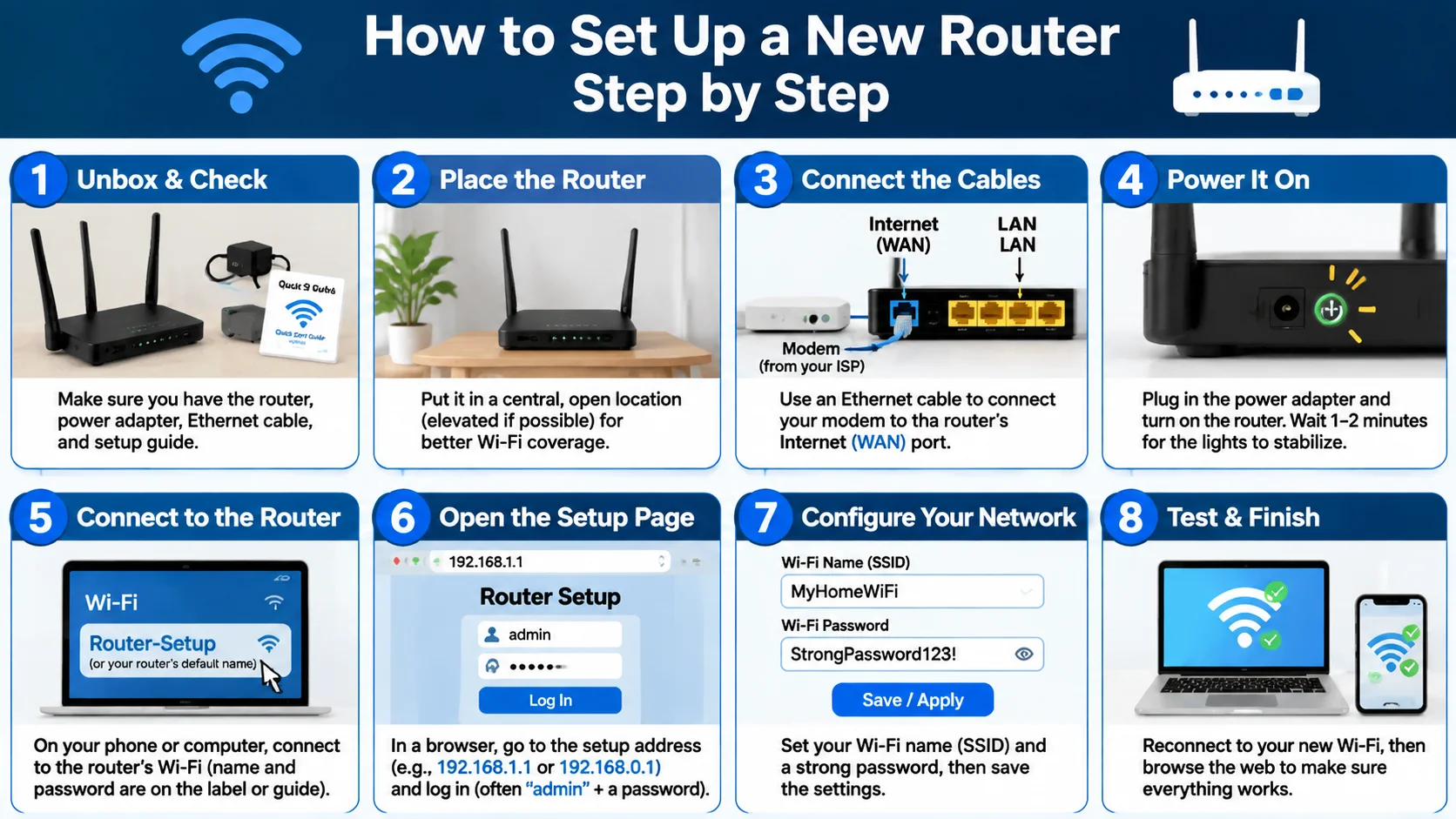
Open the box and look inside. You should see the router, a power adapter, and an Ethernet cable. Some boxes also include a quick start card and extra antennas.
You also need your modem. The modem brings the internet into your home from your provider. The router then shares that signal with your phones, laptops, and TVs.
Find Your Internet Account Details
Some providers need a username and password to connect. Cable and fiber users often skip this step. DSL users usually need it.
Look for these details on your first bill or in your welcome email. If you cannot find them, call your provider. They can share them in a minute or two.
Pick a Good Spot
Place your router in a central, open area. Walls, metal, and microwaves weaken the signal. A shelf in the living room works better than a closet floor.
Keep it off the ground if you can. Wi-Fi spreads out and down, so height helps. Also keep it away from baby monitors and cordless phones.
How to Set Up a New Router Step by Step
Now comes the fun part. Follow these steps in order. Do not skip ahead, because each step builds on the last one.
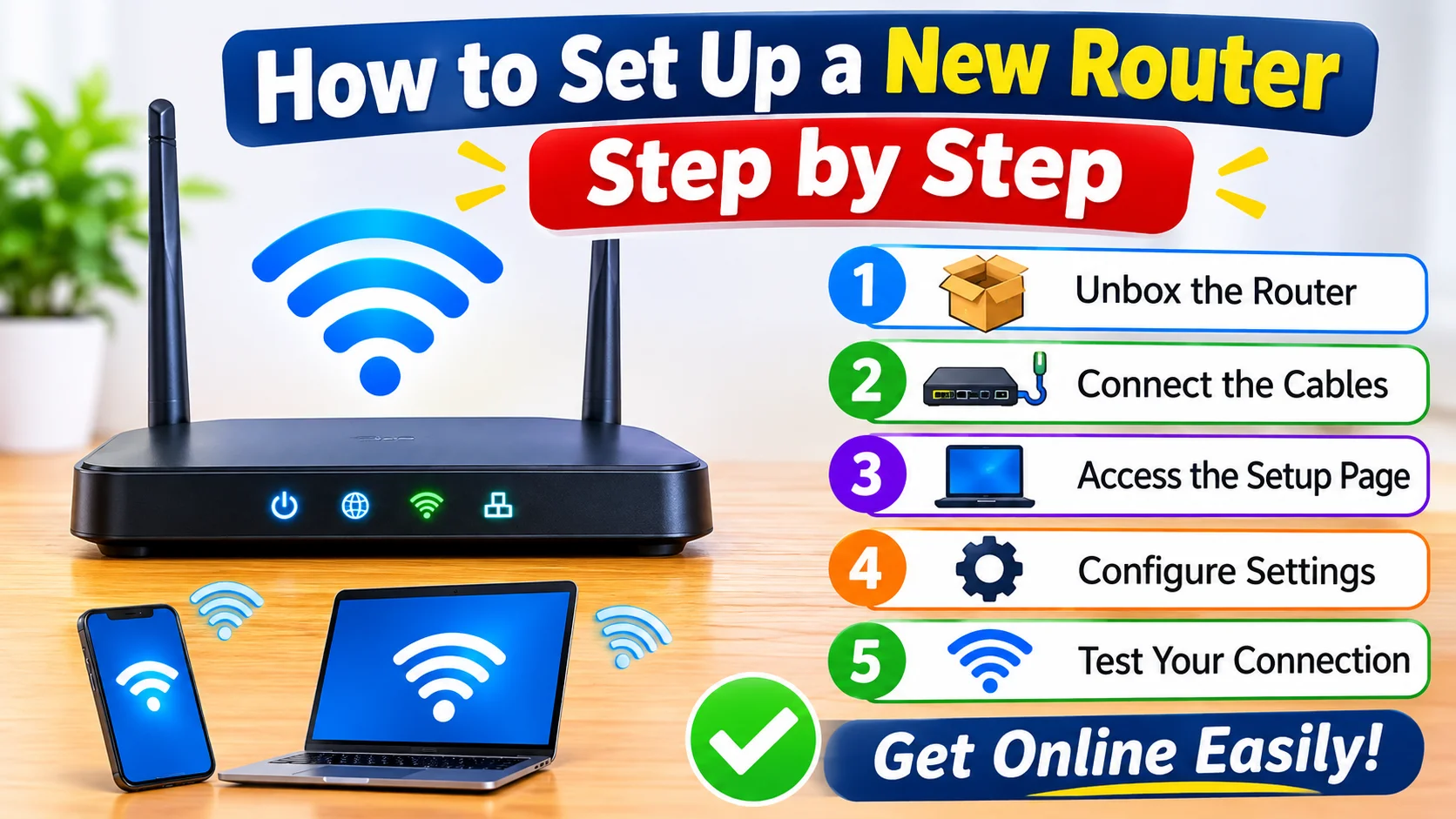
Step 1: Turn Off and Unplug Your Modem
Unplug your modem from the wall. Wait about 30 seconds. This clears old connection data and gives the modem a fresh start.
If you are replacing an old router, unplug that too. Then remove its cables. You can recycle it later.
Step 2: Connect the Modem to the Router
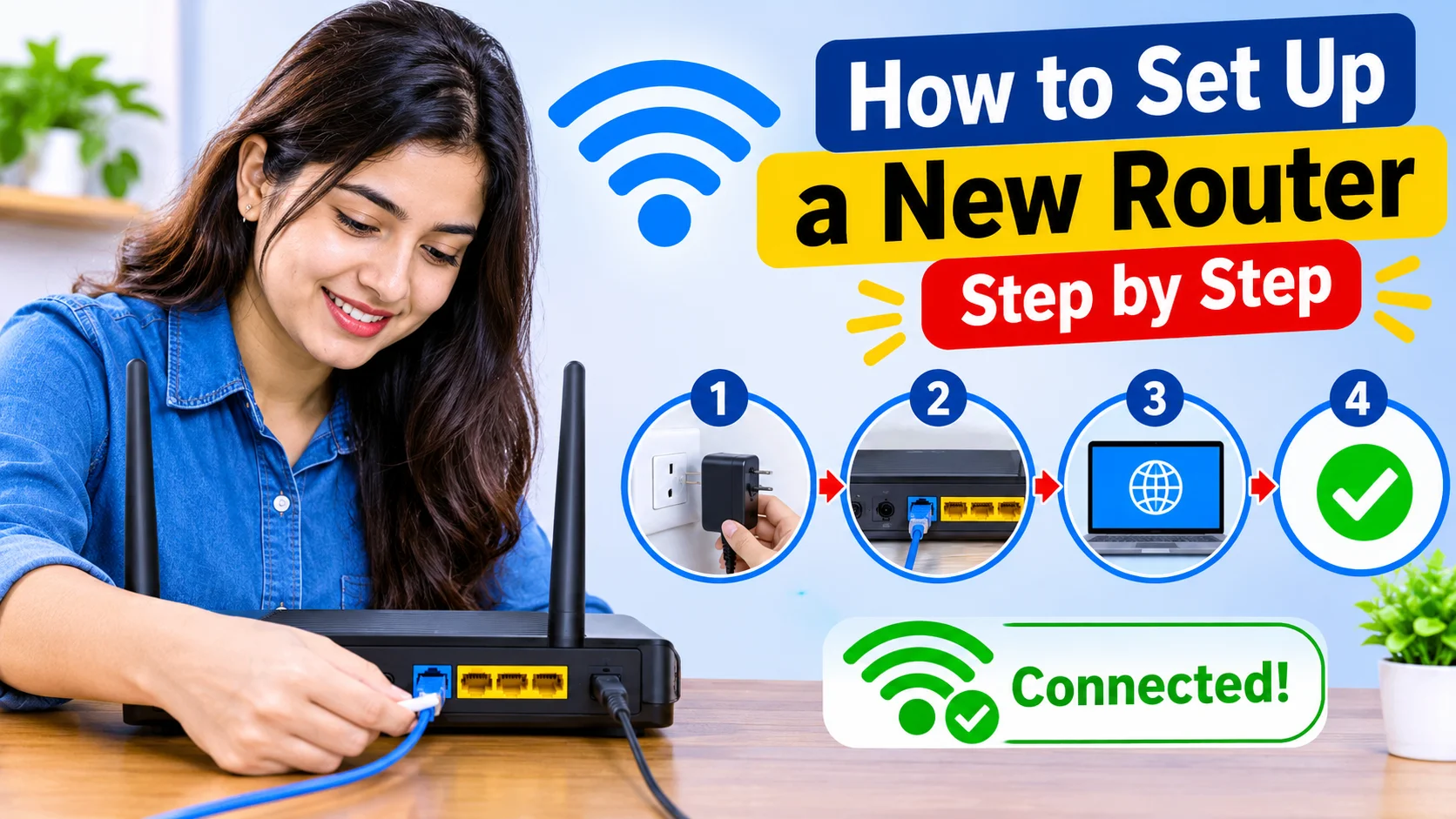
Take your Ethernet cable and plug one end into the modem. Plug the other end into the router’s WAN port. Many routers label this port “Internet,” and it often has a different color.
Make sure the cable clicks into place. A loose cable causes more problems than you would think. Give it a gentle tug to check.
Step 3: Power Everything Back On
Plug the modem back in first. Wait until its lights turn solid, which takes about two minutes. Then plug in the router and wait again.
Be patient here. Many people rush this part and think the router is broken. Give it a full three minutes to start up.
Step 4: Connect Your Device to the Router
Now connect a phone or laptop to your new router. You can use Wi-Fi or a spare Ethernet cable. The default network name and password sit on a sticker under the router.
Join that network like you would any other Wi-Fi. Wired connections work best for setup because they stay steady. Still, Wi-Fi works fine if you have no spare cable.
Step 5: Open the Setup Page or App
Most new routers use a phone app. Download the app named in your quick start card, then follow the prompts. It walks you through everything with simple screens.
Prefer a browser? Type the router’s address into the address bar. Common ones are 192.168.1.1 and 192.168.0.1. You can find the right one on the router label.
Step 6: Create Your Wi-Fi Name and Password
Pick a new network name, also called an SSID. Choose something fun, but skip your last name or street address. Neighbors can see this name.
Then create a strong password. Use at least 12 characters with a mix of words, numbers, and symbols. A short phrase works well, like “BlueTigerRuns4Pizza!” and it is easy to remember.
Step 7: Update the Router Firmware
Firmware is the software that runs your router. Makers fix bugs and security holes in updates. Your new router may already be a few versions behind.
Look for an “Update” or “Firmware” button in the settings. Click it and let the router finish. Do not unplug it during the update.
Quick Reference Table: Setup Steps at a Glance
Need a fast reminder? This table sums up each step, the time it takes, and the common mistake to avoid.
| Step | What You Do | Time Needed | Common Mistake |
|---|---|---|---|
| 1 | Unplug the modem | 1 minute | Skipping the 30-second wait |
| 2 | Connect modem to router WAN port | 1 minute | Using the wrong port |
| 3 | Power on modem, then router | 5 minutes | Rushing the startup |
| 4 | Connect your device | 2 minutes | Using the wrong network name |
| 5 | Open the app or setup page | 3 minutes | Typing the wrong address |
| 6 | Set Wi-Fi name and password | 3 minutes | Choosing a weak password |
| 7 | Update firmware | 5 minutes | Unplugging during the update |
Smart Settings to Change Right Away
Your router works after setup, but a few tweaks make it safer and faster. These take only a few extra minutes. They also protect your family online.
Change the Admin Login
Every router has an admin login for its settings page. The default is often “admin” for both the username and password. Hackers know this, so change it today.
Choose a password that is different from your Wi-Fi password. Write it down and store it somewhere safe. A notebook in a drawer beats a sticky note on the router.
Turn On WPA3 or WPA2 Security
Security mode controls how your Wi-Fi scrambles data. Pick WPA3 if your router offers it. Choose WPA2 if your older devices cannot connect to WPA3.
Avoid WEP and “Open” networks. Both leave your data wide open. Most new routers already pick a safe option, but check anyway.
Use Both Wi-Fi Bands the Smart Way
Most routers send out two signals. The 2.4 GHz band travels farther but runs slower. The 5 GHz band runs faster but covers less space.
Use 5 GHz for streaming and gaming in the same room as the router. Use 2.4 GHz for smart plugs, cameras, and far-away rooms. Some routers combine both bands under one name, which also works well.
Set Up a Guest Network
A guest network gives visitors internet without access to your files and devices. It also keeps your main password private. Most routers let you turn it on with one switch.
Give it a simple name like “HomeGuest.” Add a basic password, or change it after each party. Your friends will thank you.
Easy Fixes When Something Goes Wrong
Even good setups hit a snag now and then. Do not panic. Most problems have quick fixes.
The Internet Light Stays Off or Red
Check the cable between the modem and router first. Make sure it sits in the WAN port, not a regular LAN port. Then restart both devices in the right order.
Still stuck? Call your provider. Some companies must link your router’s MAC address to your account before it works. That takes a short phone call.
The Wi-Fi Signal Feels Weak
Move the router to a more open spot. Raise it off the floor and point any antennas straight up. Small changes can add real speed.
Big home or thick walls? Try a mesh system or a Wi-Fi extender. A mesh kit places small units around your house and covers dead zones well.
You Forgot Your Router Password
Use the small reset button on the back. Hold it for about 10 seconds with a paperclip. The router returns to factory settings, so you will need to run setup again.
This is why saving your login details matters. Keep them in a password manager or a safe notebook.
Simple Habits That Keep Your Router Healthy
A router needs very little care. A few habits keep it fast for years. Think of it like changing the oil in a car.
Restart your router once every month or two. This clears memory and fixes small glitches. Check for firmware updates every few months, or turn on automatic updates if your router offers them.
Also dust the vents with a dry cloth. Heat shortens a router’s life. A cool router runs faster and lasts longer.
Frequently Asked Questions
Do I need a modem if I have a router?
Yes, in most cases you need both. The modem connects to your provider, and the router shares that connection with your devices. Some providers sell a single unit that does both jobs.
How long does it take to set up a new router?
Most people finish in 15 to 30 minutes. The longest part is waiting for devices to restart. Using the router’s app often makes it even faster.
Can I set up a router without a computer?
Yes, you can. Most modern routers work with a phone app that guides you through each step. You only need a smartphone and a Wi-Fi connection.
Where should I put my router for the best signal?
Place it in a central, open spot, ideally off the floor. Keep it away from thick walls, metal objects, and microwaves. This gives you the widest and strongest coverage.
How often should I change my Wi-Fi password?
Change it once a year, or right away if someone you do not trust gets it. A strong password lasts a long time. Always update it if you suspect a problem.
Final Thoughts
Setting up a new router feels scary at first, but it is really just a few simple steps. Unplug the modem, connect the cables, power up, and use the app to name your network. Then update the firmware and lock down your settings.
Now you know how to set up a new router step by step, plus how to fix common issues. A strong password, a smart spot, and regular restarts will keep your Wi-Fi smooth. Go enjoy your fast, safe connection.
[…] to Connect Printer to WiFi: A Complete Step-by-Step Guide How to Set Up a New Router Step by Step: A Simple Guide for Beginners How to Back Up Files to an External Drive or the Cloud: A Simple Guide for Everyone Why Is My […]